Follow different sources

One of the biggest advantages of Inoreader’s Pro plan is the variety of source types you can follow when building your personal content library – and then use as input for monitoring and automations.
In our onboarding series for Free users, we covered regular RSS feeds and Google News. In the previous post in this Pro series, we explored Web feeds and Track changes. Now it’s time to look at additional source types available to Pro users: social feeds, YouTube channels and playlists, podcasts, newsletters, and password-protected feeds – all managed in one place.
Social feeds
You can follow social media sources in Inoreader from Add feed in the tab bar, just like any other feed type.
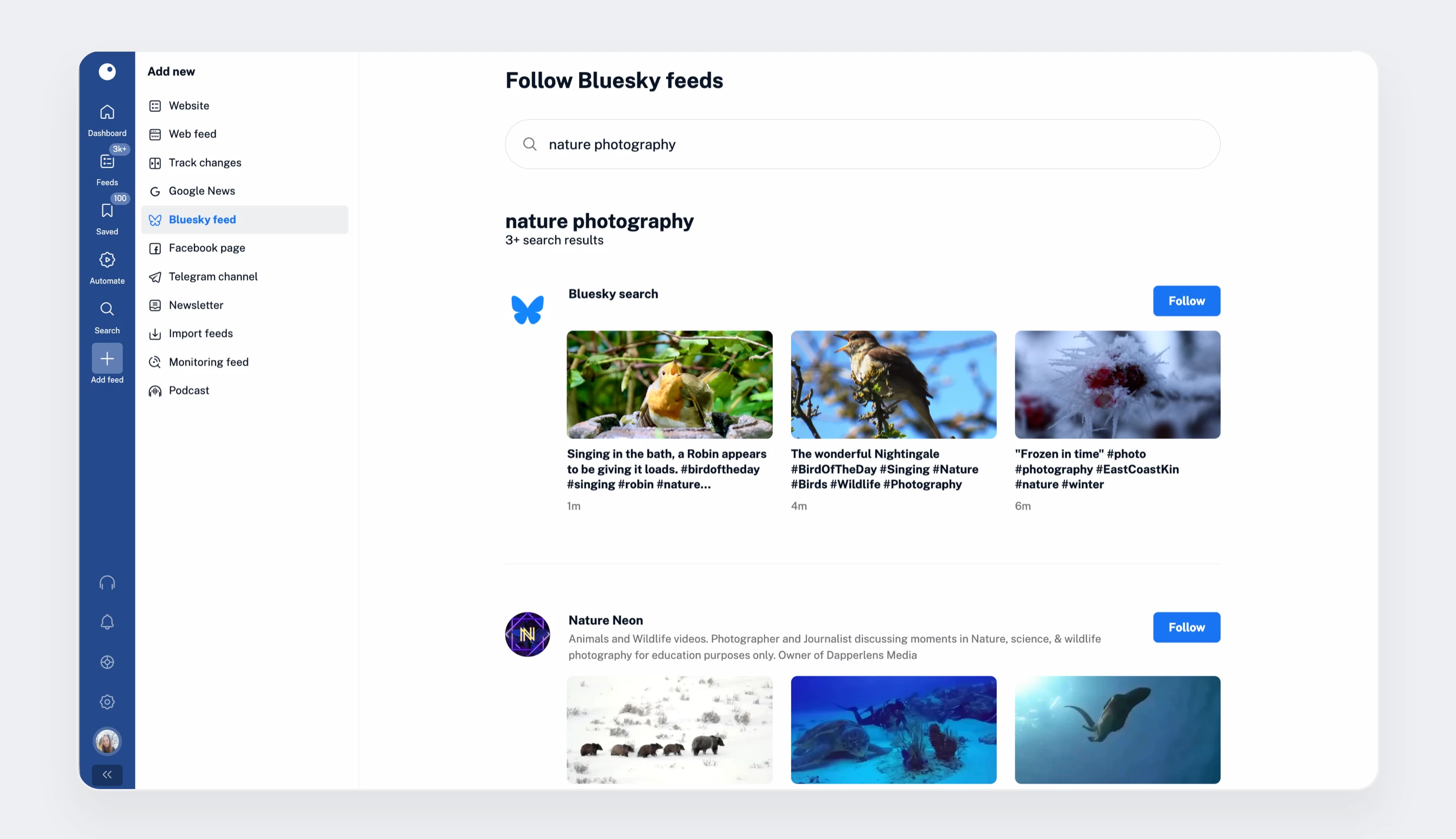
Our Bluesky integration offers several ways to follow content in Inoreader. You can subscribe to search results by keyword (e.g., Inoreader), find and follow accounts by their handle (@inoreader.com), paste a direct profile URL (https://bsky.app/profile/inoreader.com), follow hashtags (#inoreader), or add your entire Home timeline to your feeds (https://bsky.app).
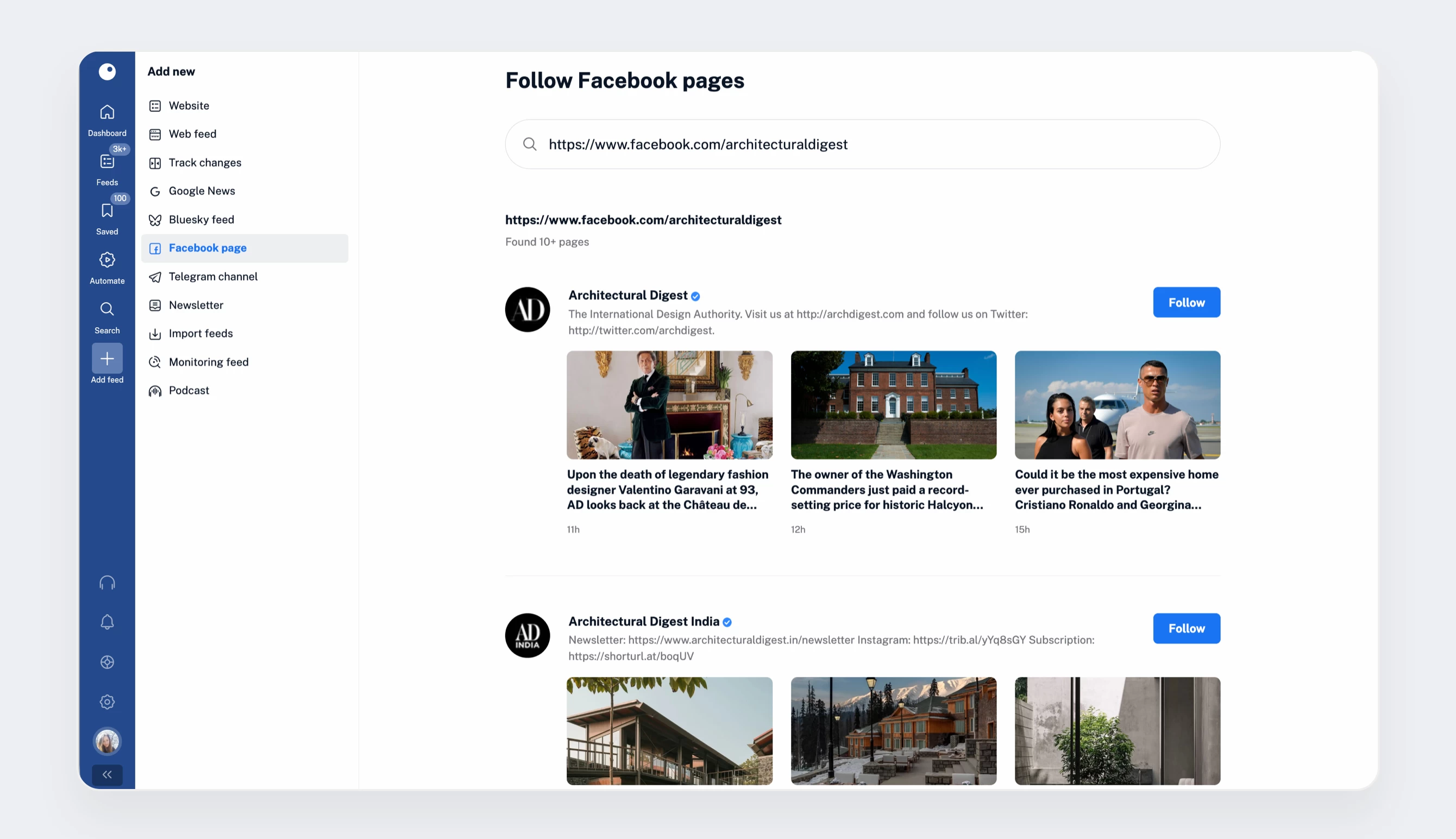
Following public Facebook pages in Inoreader is pretty straightforward. You can search by keyword or simply paste the page URL to subscribe.
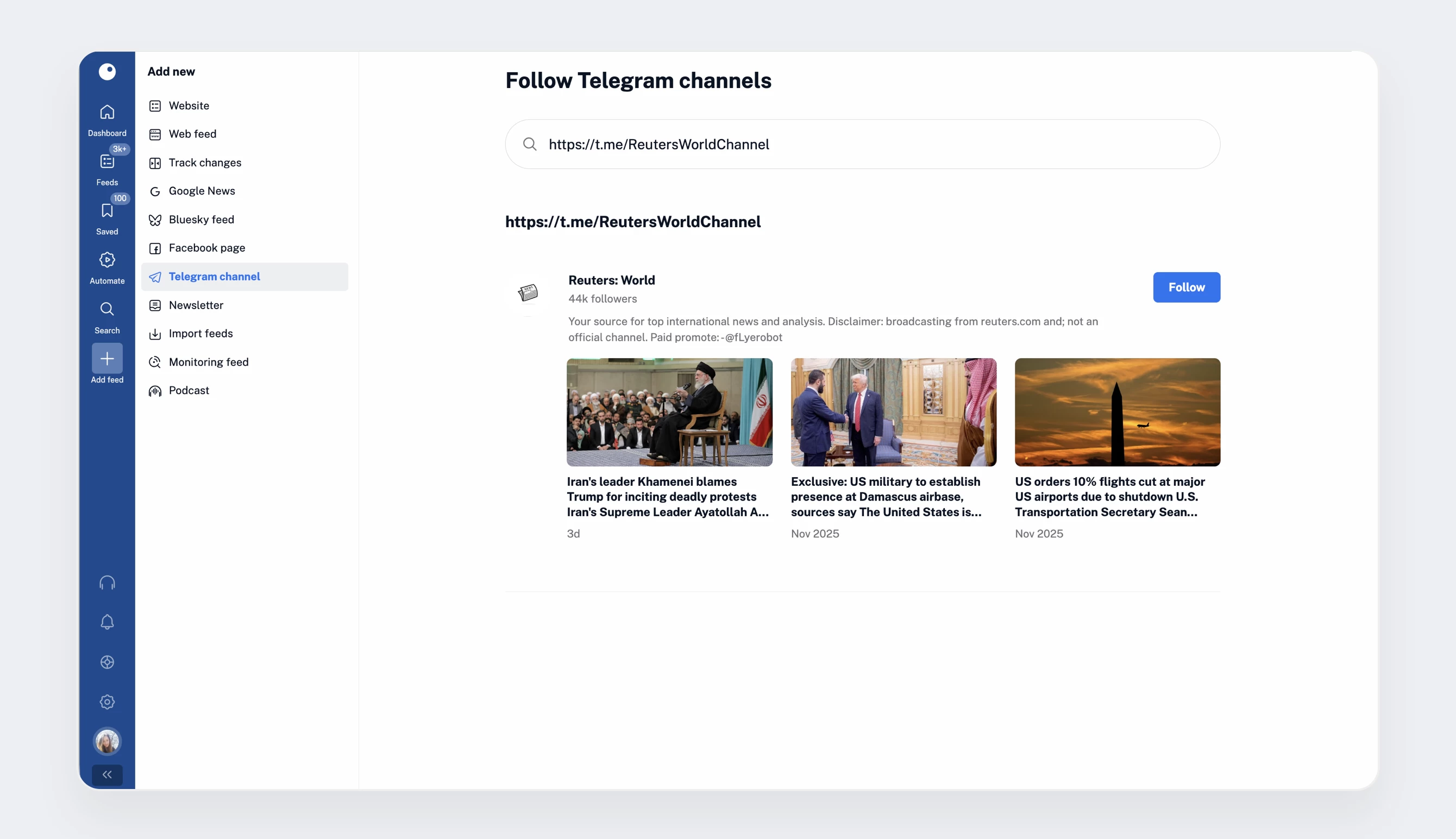
If Telegram is part of your news mix, you can follow public channels in Inoreader as well. Search by keyword to explore channels, or add a specific one by name or URL to receive updates directly in your feeds.
YouTube
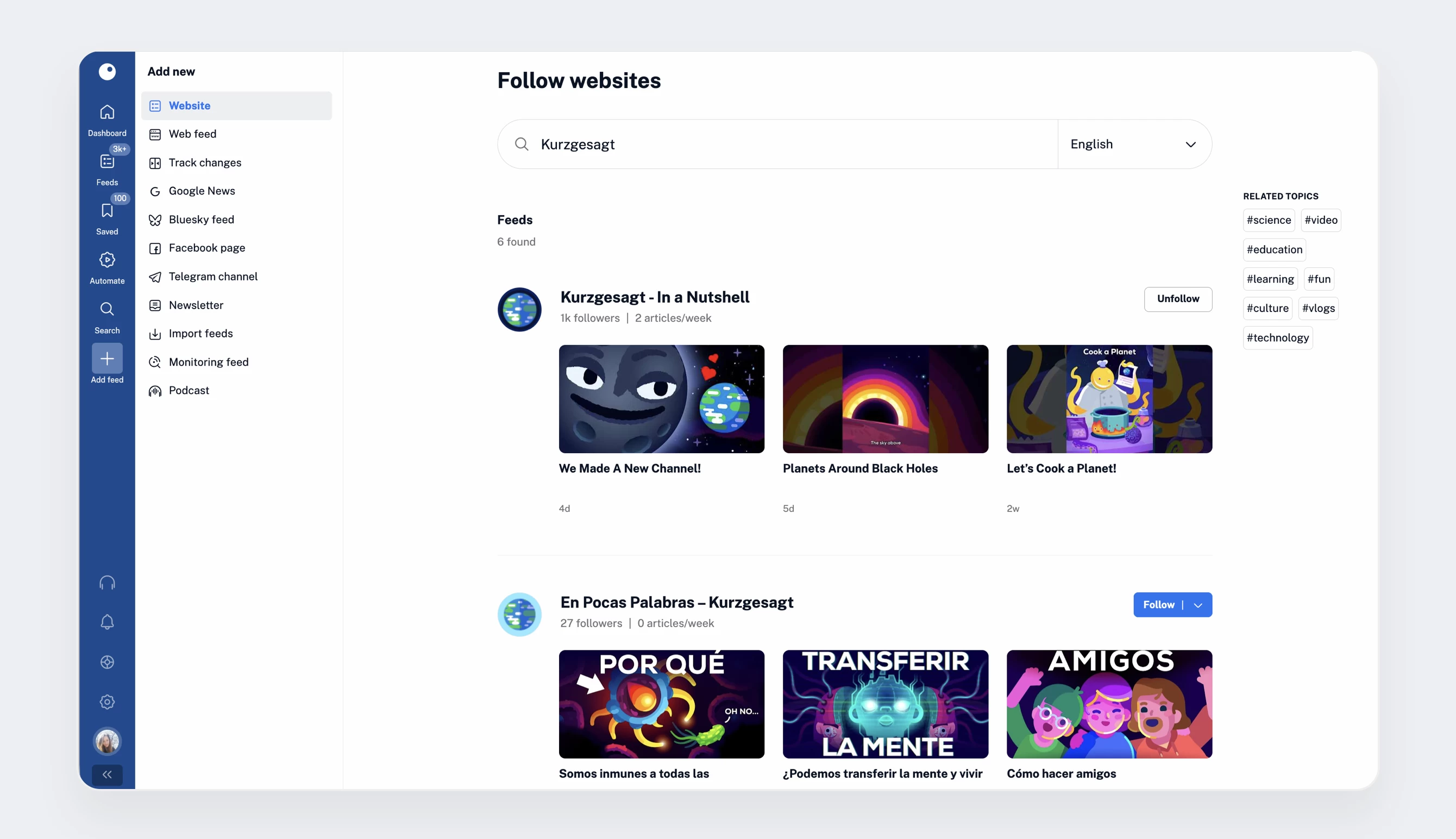
You can follow public YouTube channels and playlists in Inoreader by pasting their URL or searching for them in the Website section of Add feed.
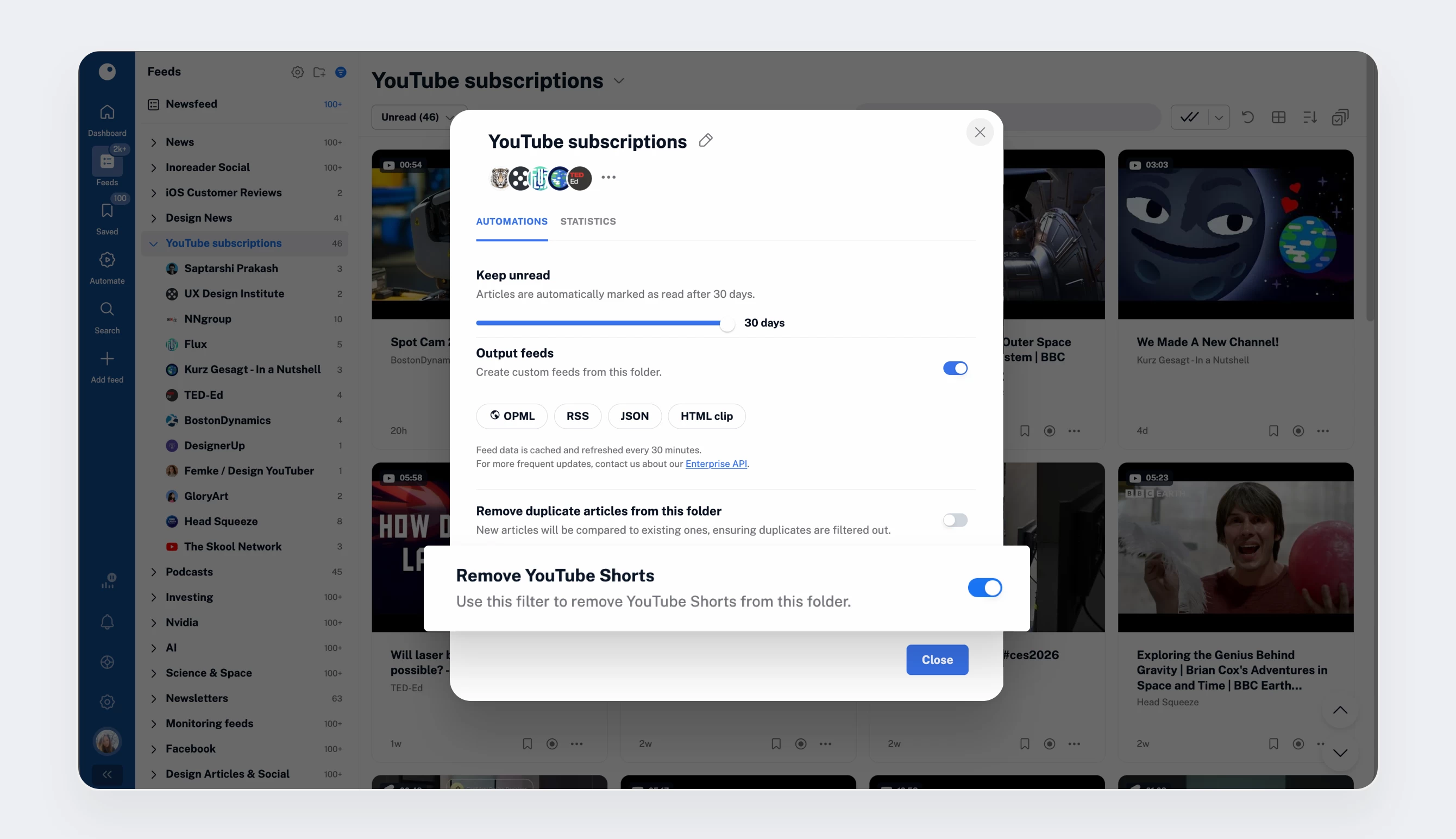
Once you’ve added some YouTube feeds, you’ll notice several features designed to save you time and reduce noise. You can enable the Shorts filter to exclude Shorts from your feeds and folders, easily identify Shorts and live videos with distinct icons, and see video durations at a glance in your Newsfeed and folders.
You can also sync your YouTube subscriptions with Inoreader. To do this, go to Preferences > Share, save, login, find the YouTube icon, and click Connect to link your accounts.
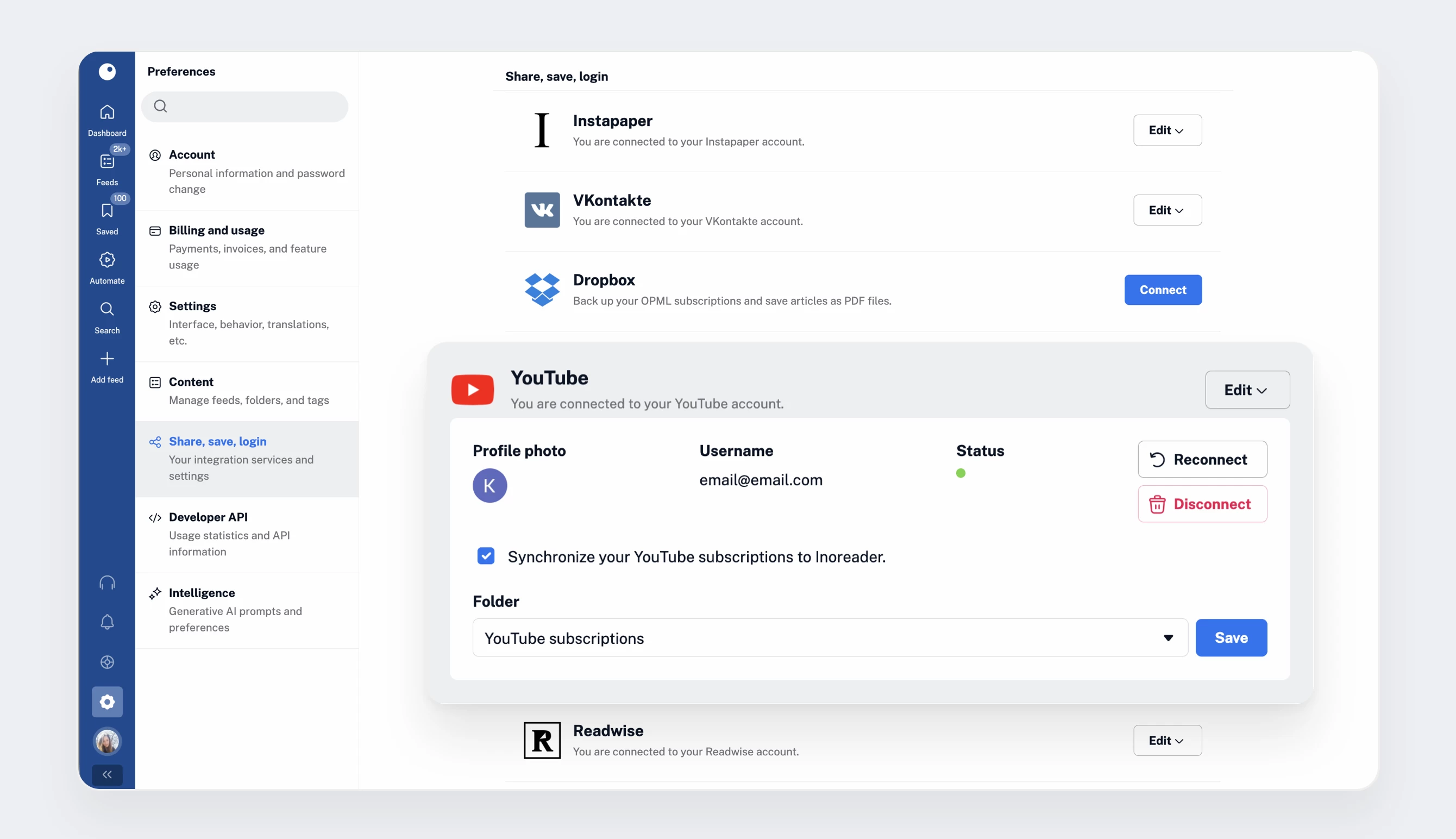
Once connected, Inoreader will automatically create a YouTube subscriptions folder and populate it with all your current subscriptions. New channels you follow on YouTube will be added automatically, and channels you unsubscribe from will be removed, keeping everything in sync without manual effort.
Podcasts
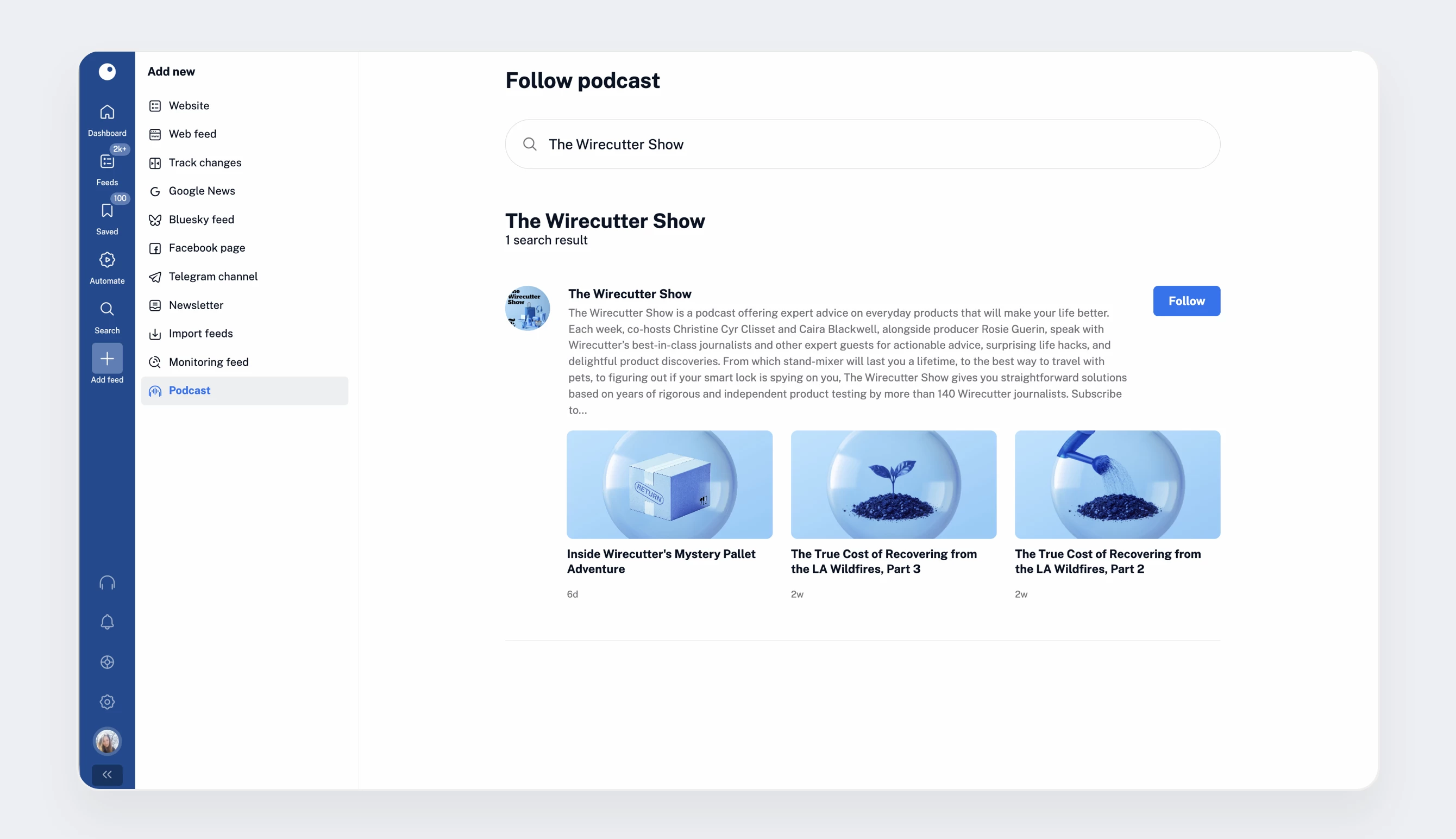
Following podcasts in Inoreader is just as easy. Go to Add feed, select Podcasts, and search by keyword, name, or paste the podcast’s URL. Once added, podcast feeds behave like any other feed in your account.
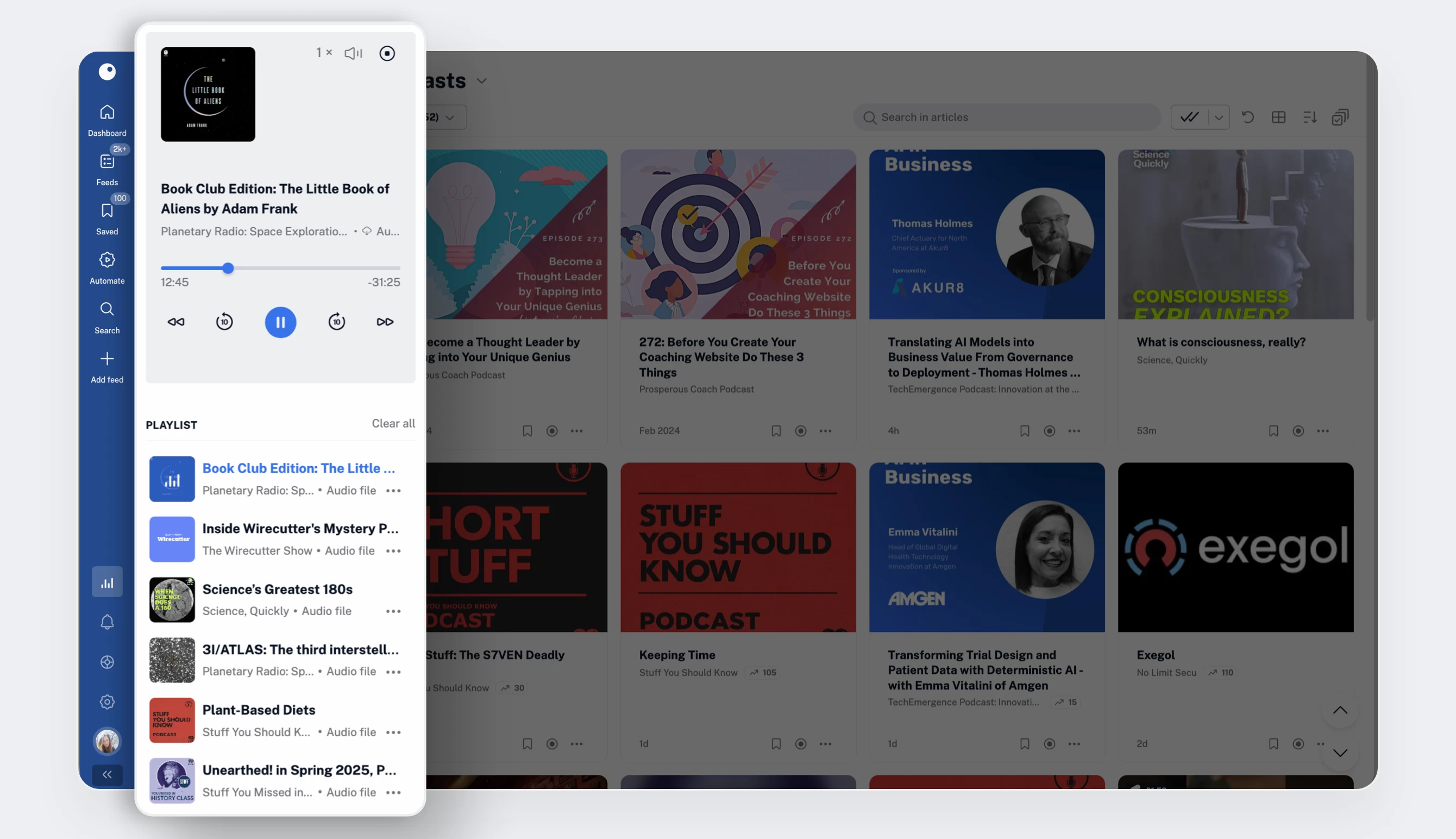
Inoreader’s audio player lets you listen to podcast episodes and text-to-speech articles directly in the app or in the background while you multitask. You can add episodes to your listening queue from any feed or folder, rearrange your playlist on the go, adjust playback speed, and skip forward or backward with a single click. You can access the audio player from the tab bar and enjoy a seamless listening experience while browsing.
Newsletters
Inoreader can also act as your newsletter hub, keeping your inbox clean while giving you full control over the content you subscribe to.
To add a newsletter, go to Add feed > Newsletter, give your subscription a name (for example, WIRED Daily), and create a dedicated email address (e.g., [email protected]). Once saved, the address is activated and ready to use.
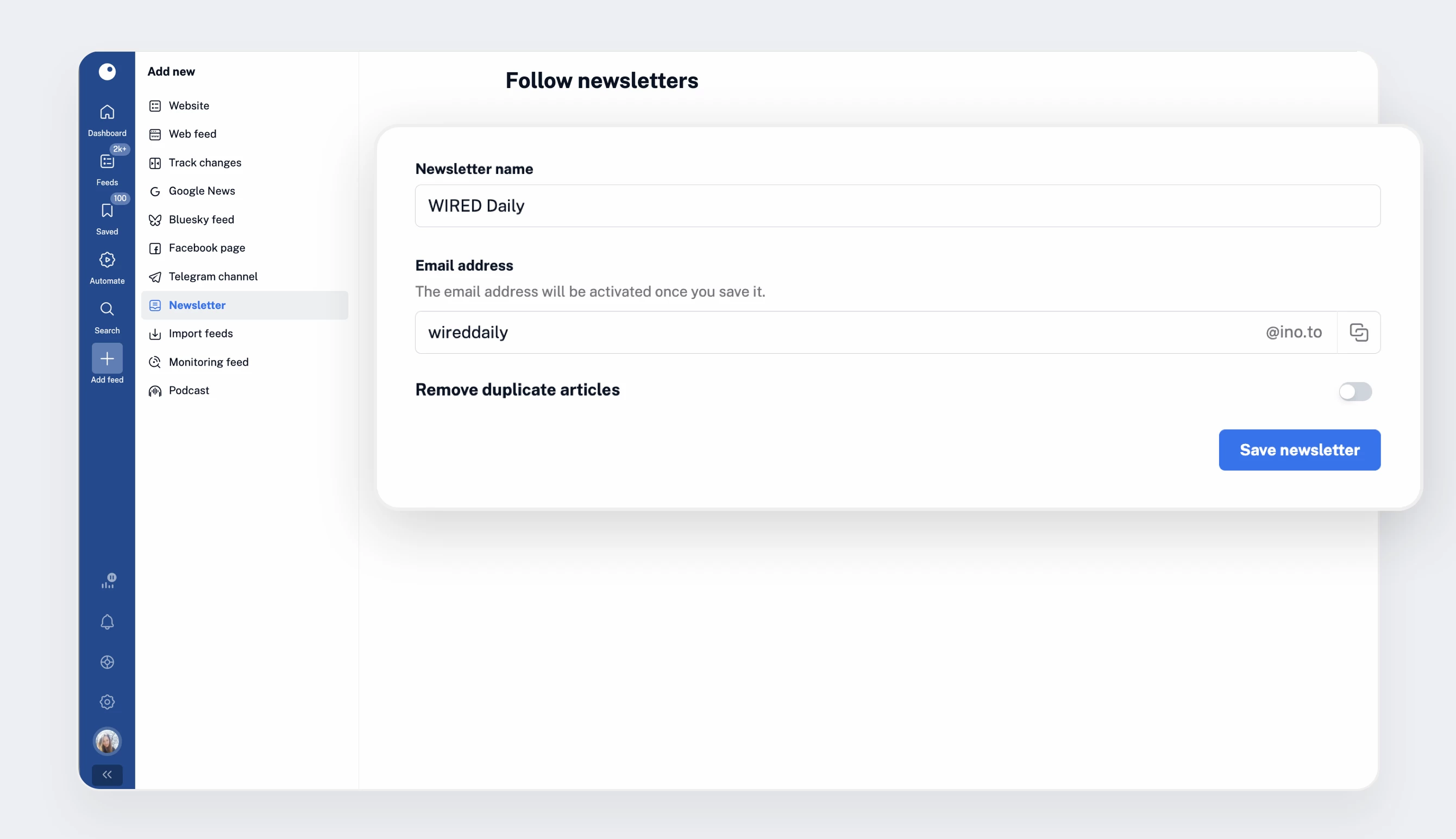
Subscribe to the newsletter using this email address, and all new issues will arrive directly in your Inoreader account. From there, you can annotate them, apply filters, and automate actions – just like any other feed – while keeping your real inbox clutter-free.
Pro tip: Newsletter feeds can double as a clever Gmail workaround. Forward selected emails or mailing lists to Inoreader and process them with rules, tags, or monitoring feeds instead of letting them pile up in your inbox.
Password-protected feeds
While most RSS feeds are public, some are used in closed or internal environments and require authentication. Inoreader supports RSS feeds protected with Basic and Digest HTTP Authentication.
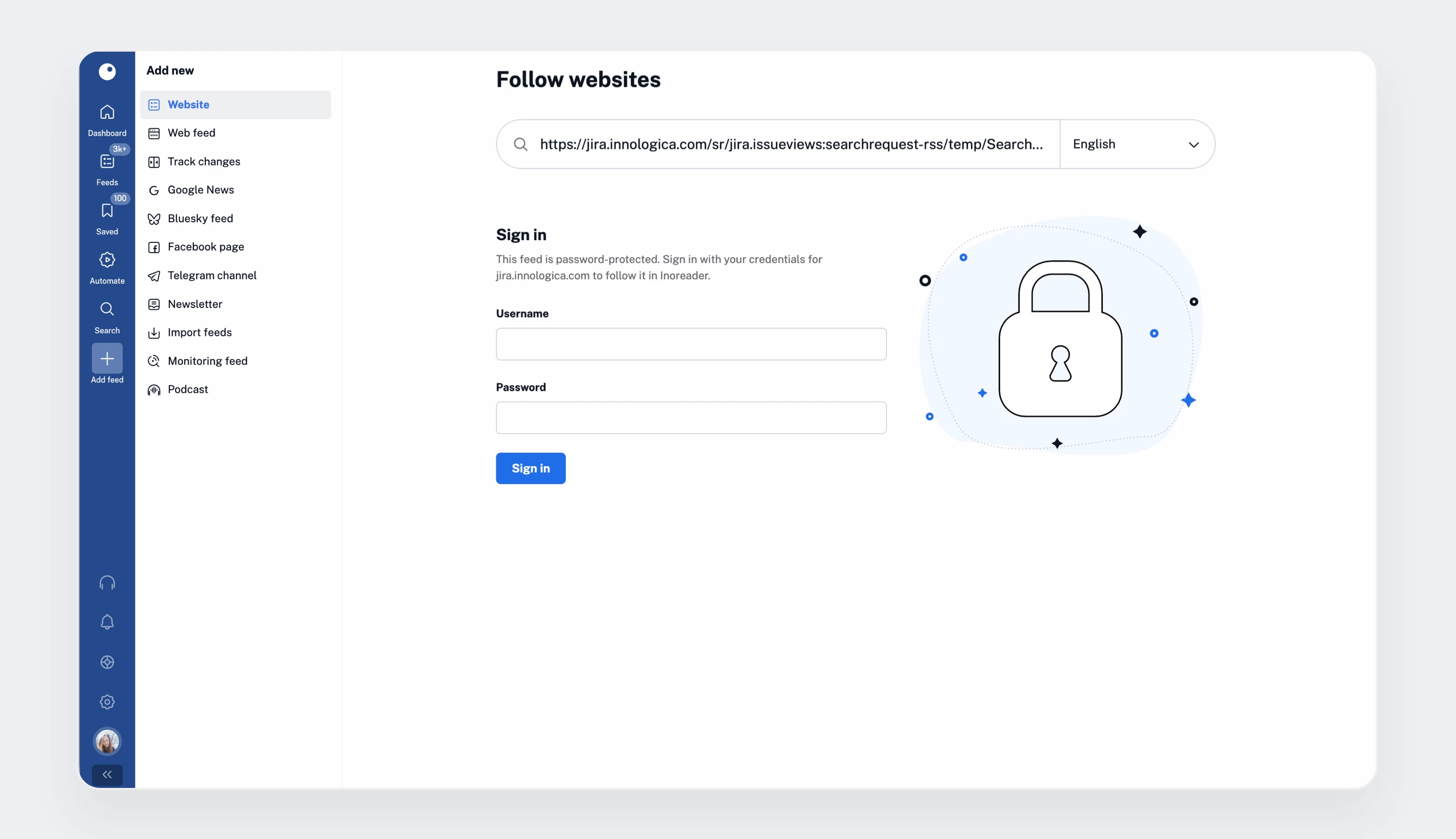
To add one, go to Add feed > Website, paste the feed URL, and press Enter. You’ll be prompted to enter your credentials. Once authenticated, the feed will be added to your account and will behave just like a regular feed.
Build your content library, your way
With a Pro plan, Inoreader goes far beyond standard RSS. You can follow feeds from social platforms, videos, podcasts, newsletters, and protected sources (all alongside traditional feeds) and bring everything into one structured, searchable library.
This flexibility makes it easier to monitor topics across formats, automate workflows, and build a content system that reflects how you consume information daily.
In the next post in our Pro onboarding series, we’ll look at how to organize and act on content using filters, rules, and bulk actions.