Where can I see my Team members and settings?
Click Team in the tab bar, then Manage Team at the top of the Team sidebar. Members lists everyone in the Team with their role and last activity, and the other sections hold the Team's name, billing, SSO, Intelligence settings, content, filters, spotlights and automated reports.
Every member can open every section. Changing them is for admins, and the Intelligence settings for the Team owner only. An admin is the owner or a member with the Admin role, and your own role shows under the Team name in the sidebar as Team admin or Team member.
Open the member list
- Click Team in the tab bar.
- Click Manage Team under the Team name.
- Click Members in the list that opens in the sidebar.
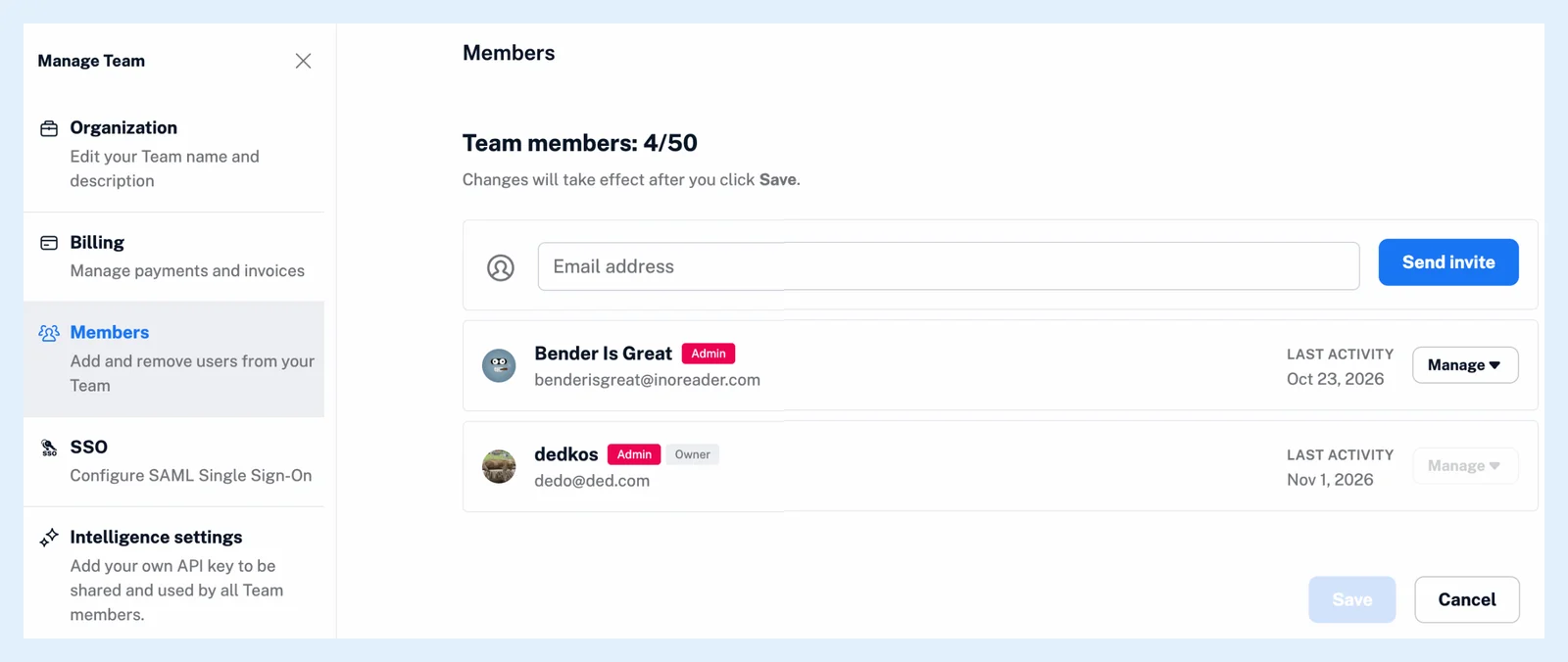
The heading counts the members against the plan's seats, for example "Team members: 8/10". Each row shows the member's name and email, an Admin or Owner badge, Deactivated when the member was switched off, and their last activity.
Admins also get an invite field with Email address and Send invite, and on each row Manage > Role, which switches between Member and Admin, and Delete member. The changes apply after you click Save. The owner's Manage button is disabled, so the owner can't be demoted or removed. When SSO is on, the invite field is replaced by a note that new members sign up with SSO on inoreader.com/sso, as What is Single Sign-On (SSO)? explains.
The other sections
Organization holds the Team's Name and Description, read-only for members and editable with Save for admins. Billing has the tabs Plan data, Payment history and Your invoices, plus Usage when the Team shares feature pools, which How can I track my Team's usage? covers. SSO configures SAML Single Sign-On. Intelligence settings is where the owner adds an API key shared by all Team members. Content has the tabs Feeds, Folders, Channels and Tags. Filters removes duplicates or other articles by condition, Spotlights highlights words or phrases in articles, and Automated reports sends daily or weekly reports from selected content.
Plans
Teams are on the Team and Team Intelligence plans, and What is my Team sidebar, and what can I find there? shows where Manage Team sits.
Can't find an answer? Contact support