Do Team spotlights apply automatically?
No. Each member turns them on once with the See Team spotlights switch in Manage Team > Spotlights, which is off by default. From then on, every Team spotlight an admin shares, now or later, is colored in your articles together with your personal spotlights, until you switch it off again.
Turn Team spotlights on
- Click Team in the tab bar, then Manage Team.
- Open Spotlights.
- Turn on See Team spotlights.
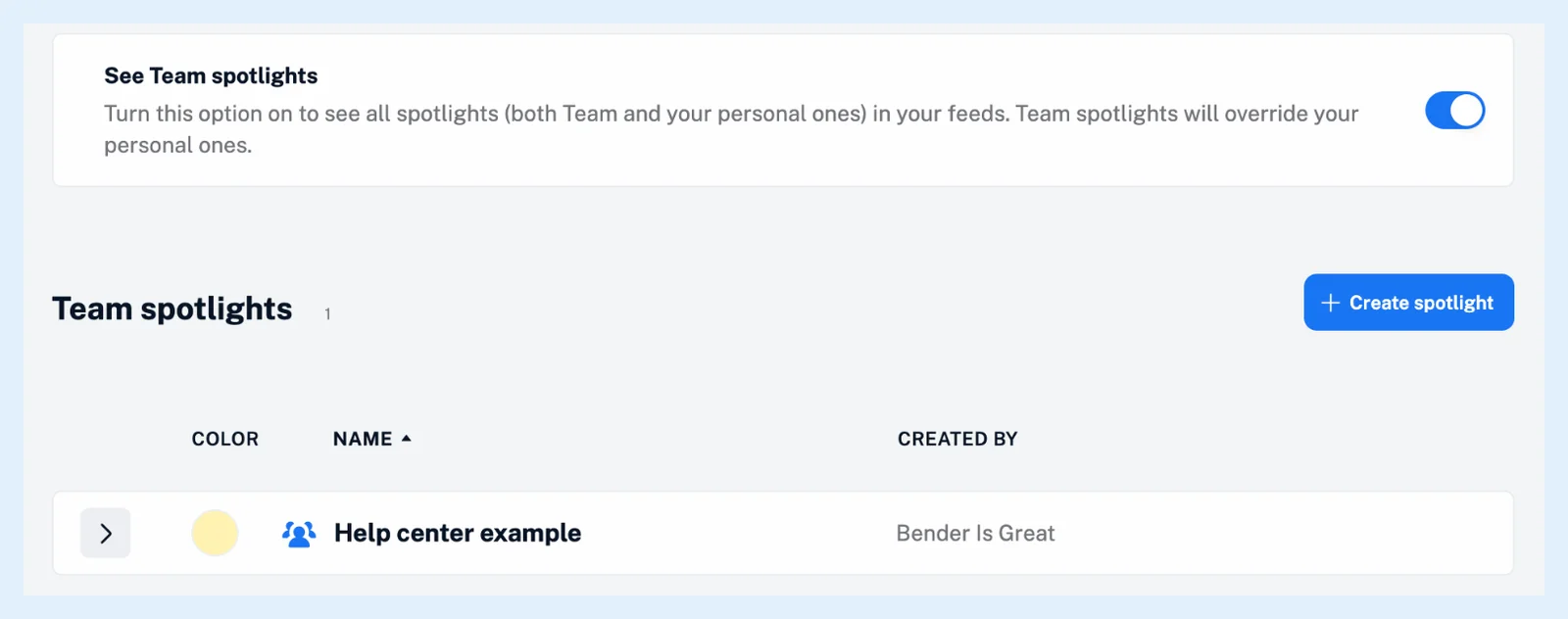
The switch applies at once: open article lists are recolored without a reload, and turning it off greys the list on the page. The notice with the switch appears once the Team has at least one shared spotlight.
What the switch covers
It's a personal setting, so each member decides for themselves, and it covers all Team spotlights at once. There is no per-spotlight choice for members. Once it's on, spotlights an admin shares later are included without another step, and a Team spotlight its creator switched off isn't applied. With the switch off, only your own spotlights color your articles. Turning it on is silent, and sharing a spotlight notifies nobody either.
When a term is in both a personal and a Team spotlight, the Team spotlight's color is used, as What happens if a keyword exists in both personal and Team spotlights? explains.
Plans
Team spotlights come with the Team and Team Intelligence plans, for every member. What are Team spotlights? explains who shares them, How do I create a spotlight? covers your own, and the feature page Make the names you care about stand out has an overview.
Can't find an answer? Contact support