Can I preview a digest issue before it is sent?
Yes. On the digest card, click Preview next to the upcoming issue to see it as it would go out now, and click Send preview to get a copy at your own email address. A Reminder in the digest's schedule emails you before each issue, with a Preview issue button that opens the same preview.
Preview the upcoming issue
- Go to Automate > Email digests, or click Email digests in the Team sidebar for a team digest, and find the digest.
- Click Preview in the line of the upcoming issue.
- Click Send preview to receive the issue by email, or Close.
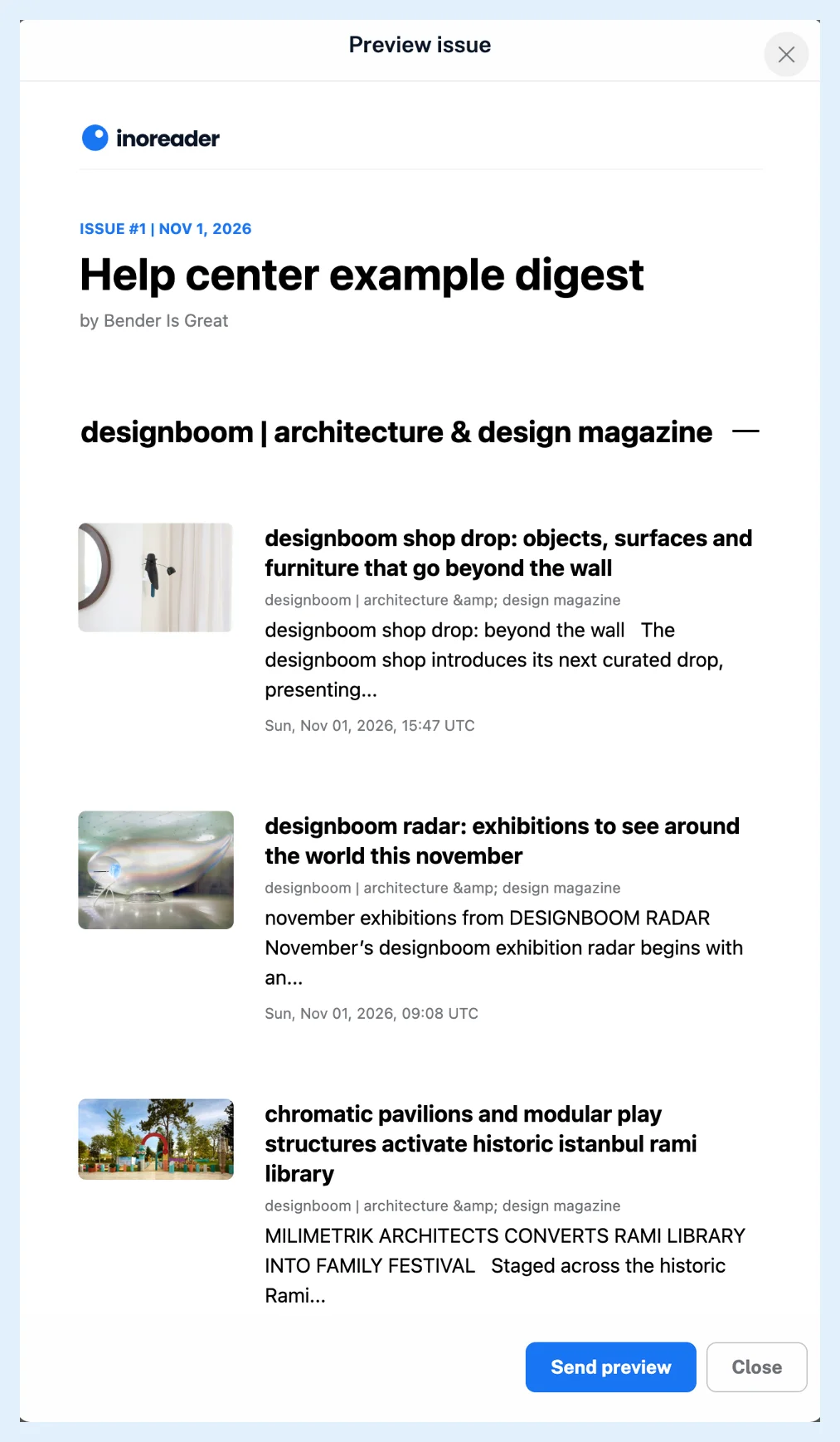
The preview is built from the articles collected so far, and more can arrive before the send time, which is why the card says "Content is still being collected." Preview appears once the sources have new articles, and a preview with nothing new says "There are no new articles from the selected sources."
AI summaries aren't generated for a preview. A placeholder text stands in for them until the issue is sent.
Send preview mails the issue to the address of your own account only, with "[PREVIEW]" in front of the subject. The recipients get nothing, and the copy has no tracking and no unsubscribe link. To change the issue before it goes out, use Edit content, as Can I edit scheduled digest issues? describes. An issue you've edited has its own Preview in its ⋯ menu.
Get a reminder before each issue
- Open the ⋯ menu on the digest card and click Edit schedule.
- Under Reminder, choose 30 min, 1 hour or 6 hours.
- Click Save schedule.
The reminder is an email to the digest's creator, sent when the issue has articles and at least one subscribed recipient: "Just a quick reminder that Issue #3 of your Weekly news digest is scheduled to be sent at 08:00." Its Preview issue button opens Email digests with the preview open, and the same reminder appears in your Inoreader notifications. How do I create an email digest? covers the rest of the schedule.
After an issue has gone out, click the digest's name, open Issues and click View to see the email the recipients got. If an issue didn't reach someone, Why has an email digest not arrived? lists what to check.
Plans
Email digests are included in every Team plan and come to Pro and Custom plans with the Email digests add-on.
Can't find an answer? Contact support