Can I move or hide mentions in articles?
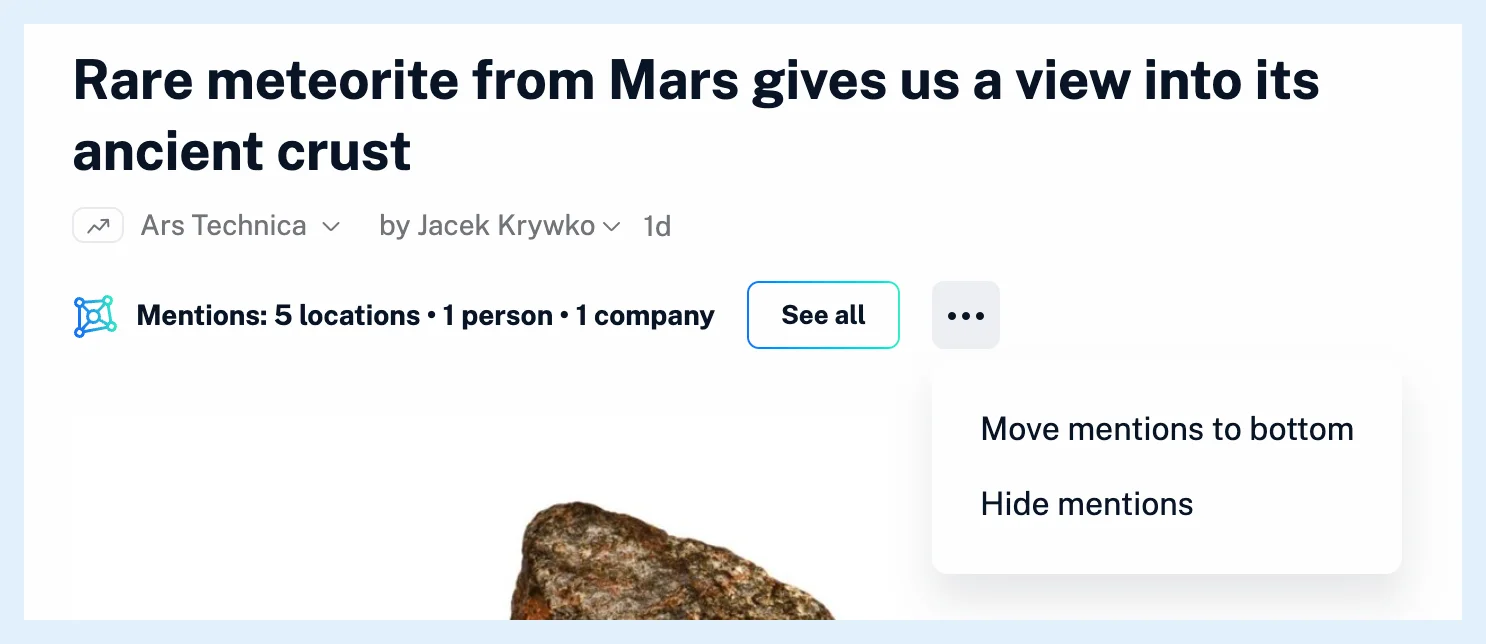
Yes. Open the three-dot menu on the Mentions: line of any article and choose Move mentions to bottom or Hide mentions. The choice applies to every article, and you can change it again under Preferences > Settings > Article contents > Mentions.
Move or hide mentions from an article
- Open an article with a Mentions: line.
- Click the three-dot menu at the end of the line.
- Choose Move mentions to bottom or Hide mentions.
When you move them, the block in every open article slides to the other end at once and the menu item becomes Move mentions to top, which brings them back. At the top, the block sits under the article's header, before the text. At the bottom, it follows the text.
When you hide them, every block disappears and a message says that mentions are hidden and can be restored in Preferences. Hidden mentions show no menu in articles, so you restore them under Preferences.
Restore or change the setting later
- Click the gear in the tab bar to open Preferences, then Settings.
- Open the Article contents tab.
- Under Mentions, choose Show mentions at the top of articles, Show mentions at the bottom of articles or Hide mentions.
The top is the default. It's an account preference saved on the server, so it applies to every article on the website in every browser you use.
Hiding only changes what you see. Inoreader still recognizes the mentions, and the monitoring feeds, rules and filters that use them keep working.
The setting works on every plan, since the list in articles shows on Free too. Where are mentions displayed? describes the line, the card and the page, and What are mentions? explains what mentions are. If an article shows no Mentions: line while mentions are shown, Why are mentions missing from some articles? lists the other reasons.
Can't find an answer? Contact support