Can I add password-protected RSS feeds?
Yes, with Pro, for feeds protected with HTTP Basic or Digest authentication. Paste the feed's address under Add feed > Website. When the server asks for a login, Inoreader shows a Sign in form for the username and password and then follows the feed with them.
Follow a protected feed
- Click Add feed in the tab bar. Website is selected.
- Paste the feed's address into the search box and press Enter.
- When Sign in appears, enter the Username and Password the feed expects and click Sign in.
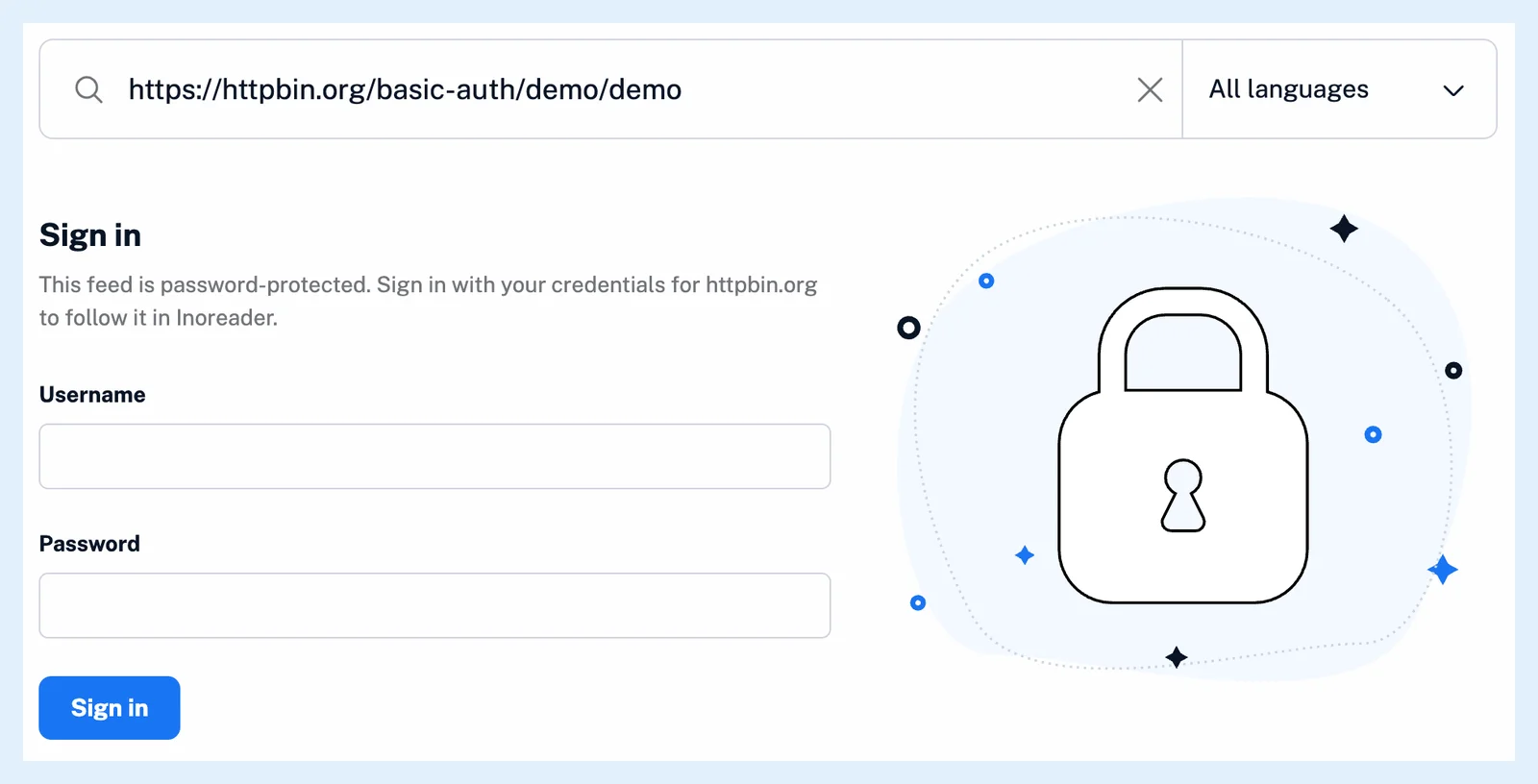
The form reads "This feed is password-protected. Sign in with your credentials for example.com to follow it in Inoreader." With wrong credentials the form comes back with the server's error.
Supported logins
Inoreader supports the two login methods built into HTTP, Basic and Digest, and picks the one the server asks for. A login made through a web form or a browser session can't be used, and a server that asks for a login without naming one of those two methods gets no Sign in form. A feed whose address carries a private token needs no credentials and is added like any other feed. The feed must be reachable from the internet: addresses on a private or company network can't be followed. For a paid newsletter that comes by email rather than as a feed, a newsletter feed is the way in.
The credentials are stored for your account and this feed only, and the feed is your private copy that other readers don't share.
Change or remove the credentials
When the password changes at the source, the feed fails until you update it. Right-click the feed, choose Feed properties, and click the pencil next to Authentication. Update credentials takes the new Username and Password. To stop using the credentials, unfollow the feed.
Plans and limits
Password-protected feeds are a Pro feature. A Free account that clicks Sign in is asked to upgrade. A protected feed counts toward the Pro limit of 2,500 feeds.
Can't find an answer? Contact support