How do I see what changed in an article?
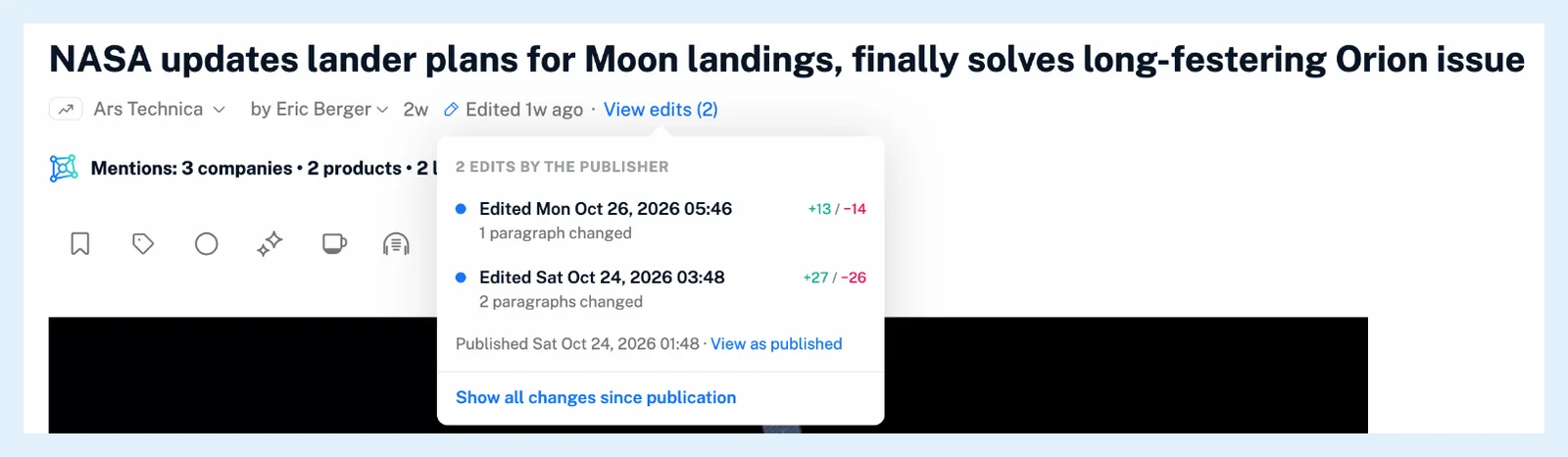
Open the article and click the Edited mark in its header, or View edits next to it when the article is shown wide enough. A list shows every edit with its time and what changed, and clicking one shows the changes in the article, with added text in green and removed text struck through in red.
Open the list of edits
- Open an article that shows Edited after its time.
- Click the Edited mark in the header, or View edits when it shows.
- Click an edit in the list.
- Use the row above the text to move between versions: Published for the article as first published, a number for one edit, All for every change at once.
- Click Hide changes to return to the current article.
The list has one row per edit, newest first: when it was made and what changed, such as Title and 2 paragraphs changed. Under the rows, View as published opens the article as first published, and with more than one edit, Show all changes since publication shows every change in one view.
Read the changes in the article
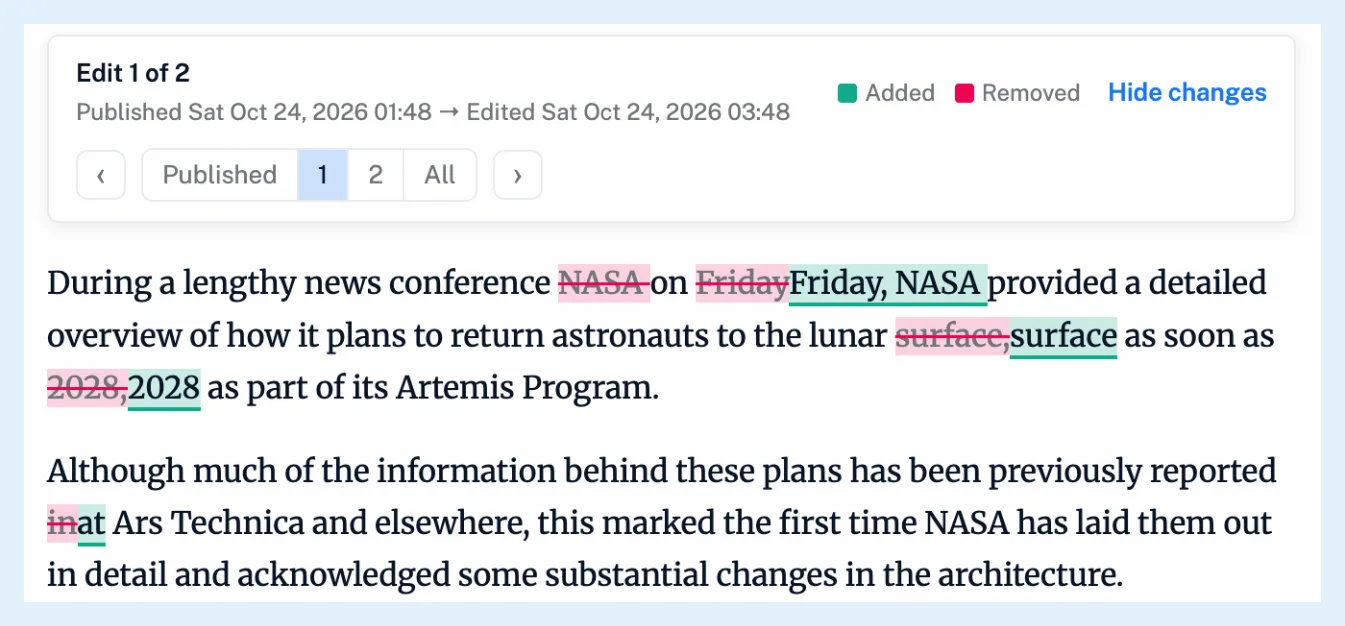
Clicking a row replaces the article text in place. A strip above the text names the view, such as Edit 2 of 3, and the two versions it compares. Added words are underlined on a green background and removed words are struck through on a red background, a whole added or removed paragraph gets a bar of that color on its left, and a changed title shows above the text in a box labeled Title. The strip's second row lists Published, each edit by number and All, and Hide changes puts the current article back.
Edits after you highlighted or loaded an article
If you highlighted the article, the first row of the list is Since you annotated, which compares the copy your highlights are on with the current article. When you read your own copy of an article, whether highlights, a translation or loaded full content, and the publisher edited it later, the bar above the text offers Show changes. See how do I create a highlight.
Viewing edits is part of Pro, Team and Custom plans, and is edit history available in all plans says what Free and Supporter accounts see. What does "Edited" on an article mean? explains which changes count as an edit, and See what changed after an article was published gives the overview.
Can't find an answer? Contact support