How do I listen to an article with text-to-speech?
Open the article and click the Listen with text-to-speech icon in its button row. A player opens above the text and starts reading once the audio is ready. Click the icon again to close it.
Start the player
- Open an article in the reading panel.
- Click the Listen with text-to-speech icon in the article's button row.
- Wait a moment while the audio is prepared. The icon turns blue and the player above the text starts playing.
- Click the icon again to close the player and stop the audio.
The icon is on every article without an audio attachment. A podcast episode shows Play audio instead.
Use the controls
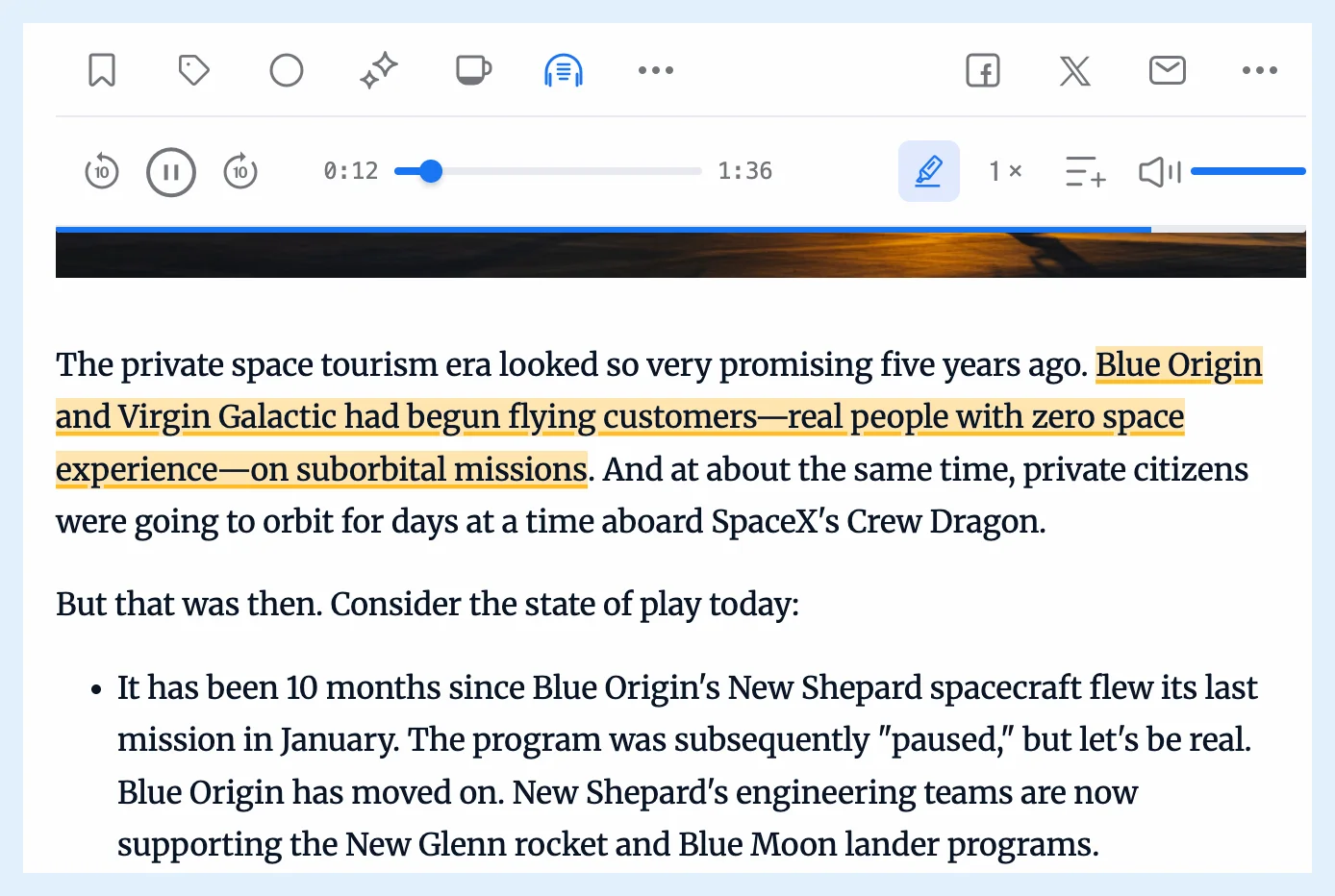
From left to right, the player has back 10 seconds, Play and Pause, forward 10 seconds, the elapsed time, the progress bar (click or drag to move), the total duration, the highlight button, the speed, Add to playlist and the volume. The speed button shows "1×", and its Speed menu offers 0.75, Normal, 1.25, 1.5, 1.75 and 2. Pausing and playing again in the same player doesn't generate the audio again.
Narration tracking highlights the sentence being read and keeps it in view. It's on by default. The highlight button, Highlight and follow the text being read, switches it off, and your browser remembers the choice.
Listen in your language
Inoreader reads the title, then the text as shown, in the article's detected language: a loaded full article or a translation is what gets read, while attachments, ads, code, images and embeds are skipped. To hear an article in your language, translate it first (Translate article, hotkey Q) and then click Listen with text-to-speech. See how to translate an article.
Keep listening while you read on
The player inside an article stops when you leave that article. To keep listening, click Add to playlist and play the article from the Audio player in the tab bar. See whether you can listen in the background. The video walks through the feature.
Plans and limits
Free accounts can listen to 5 articles a day. The player shows how many articles are left today and offers Upgrade to Pro when they're used up, and Pro has no daily limit. Each time the audio is generated counts as one article, so closing and reopening the player for the same article counts again. What text-to-speech is and Listen to any article have the overview.
Can't find an answer? Contact support