Can I listen in the background?
Yes, from the Audio player. Add the article to the playlist with Add to playlist in its text-to-speech player or Add to queue in its more menu, then play it from Audio player in the tab bar. It keeps playing while you open other articles, feeds and sections.
The player that opens inside an article belongs to that article and stops when you leave it, whether you open another article or another section. The Audio player sits in the tab bar, outside the reading panel, so nothing you do in the reading panel interrupts it.
Move an article to the Audio player
- Open the article and click Listen with text-to-speech, then click Add to playlist in the player. Or open the article's more menu (⋯) and choose Add to queue.
- Click Audio player near the bottom of the tab bar and press play.
- Go on reading other articles or browsing your feeds. The Audio player keeps playing.
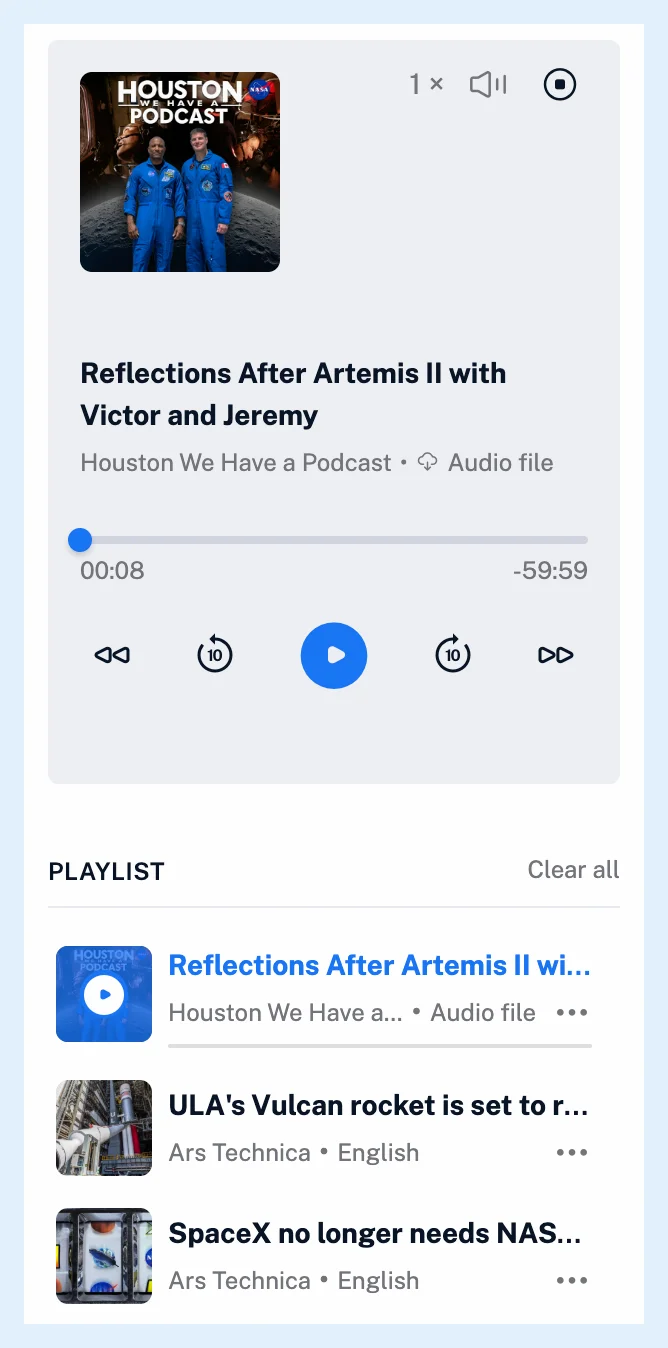
Control the playback
The Audio player plays the playlist in order and moves to the next item by itself. Articles and podcast episodes share one list. See whether you can listen to articles and podcasts together. The stop icon after the speed and volume controls stops playback, and what you can do with the audio player lists the rest of the controls.
The player hands the current title, the feed name and the article picture to your browser's media session, so the media controls of your browser and operating system show what is playing. Starting the text-to-speech player inside an article pauses the Audio player, and only one in-article player plays at a time. See how to listen to an article with text-to-speech.
Plans and limits
The Audio player is on every plan. Text-to-speech itself gives Free accounts 5 articles a day and Pro no daily limit. The feature page Listen to any article has the overview.
Can't find an answer? Contact support