Where can I find Team uploads?
Click Team in the tab bar and choose Uploads in the Team sidebar. Every file a member uploaded to the Team is listed there, newest first, for all members. Files you uploaded to the Team also appear in your own Saved > Uploads.
Open the Team's uploads
- Click Team in the tab bar.
- Click Uploads in the Team sidebar, the third page after Dashboards and Annotations.
- Click an upload to open it in the reading panel.
You can also press . for quick access, type "team uploads" and press Enter.
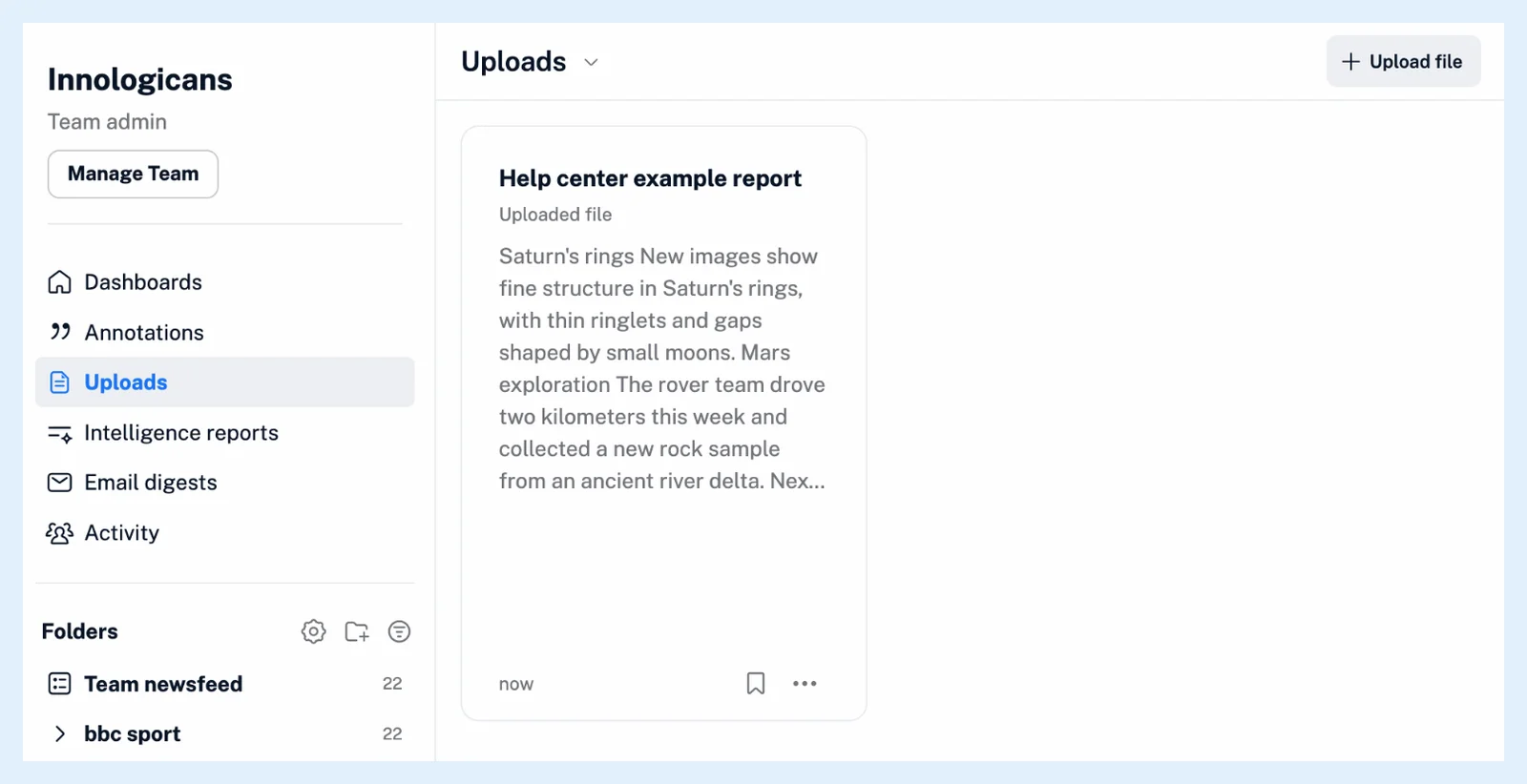
What the list shows
Every member of the Team sees all of the Team's uploads, and members of another Team can't open them. The list is ordered by upload time, newest first, or oldest first when your account sorts that way. The header search searches inside the Team's uploads. While the Team has no uploads yet, the page reads "Your Team's uploads will appear here" with an Upload file button, and How do I upload a file to my Team? explains the next step.
Your own uploads
A file you uploaded to the Team is also listed in Saved > Uploads with your other documents. Where can I find uploaded files? covers that list.
Team dashboards
A Team dashboard can show the most recent files uploaded by your Team with the Uploads widget. What is a Team dashboard? explains dashboards, and What is my Team sidebar, and what can I find there? the rest of the sidebar.
Plans
Team file uploads come with the Team and Team Intelligence plans as part of Teams.
Can't find an answer? Contact support