How do I upload a file to my Team?
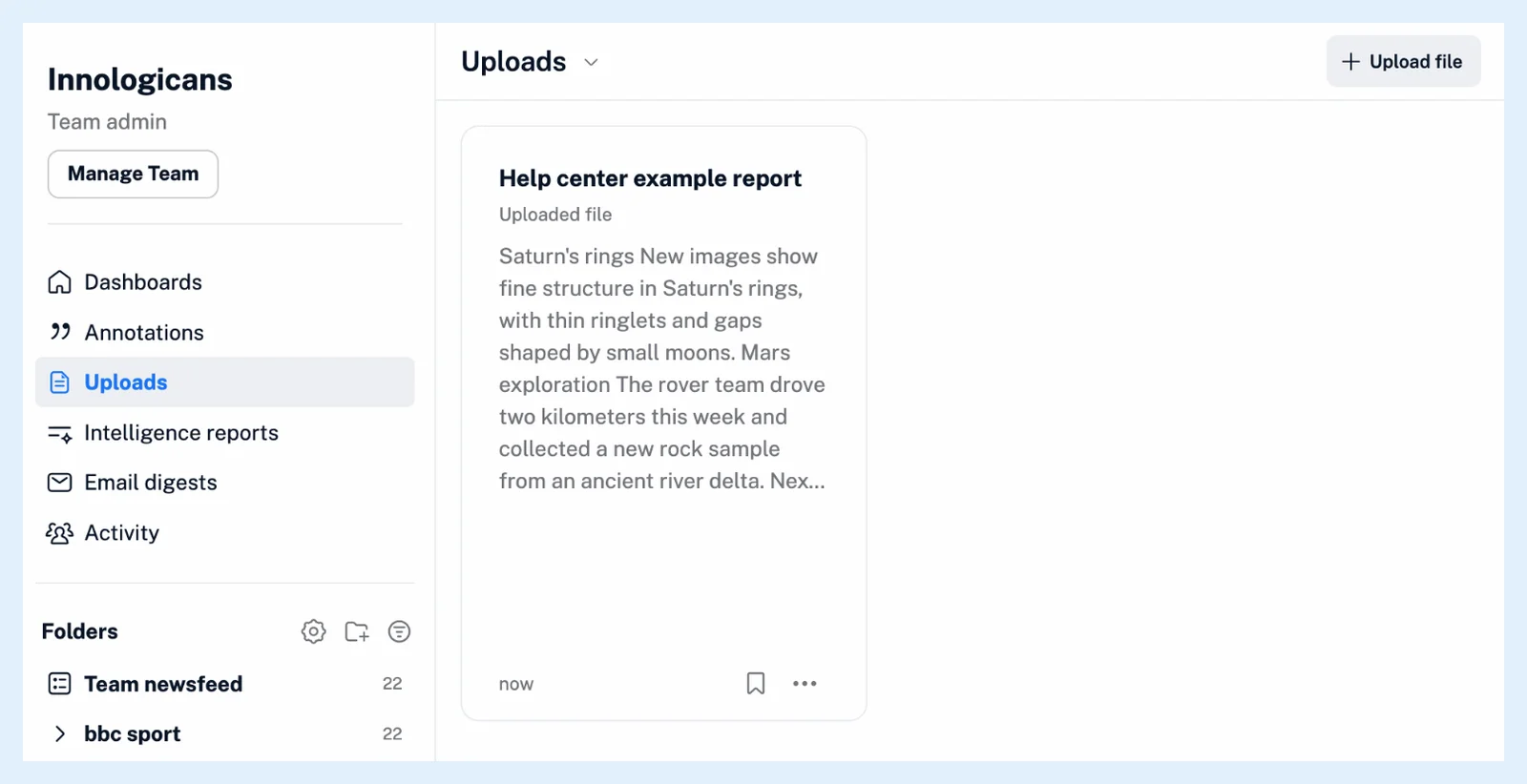
Click Team in the tab bar, open Uploads in the Team sidebar and click Upload file in the header. Drop a file on the box or click Browse files, then click Upload file. Once Inoreader has processed it, the document is an article in the Team's Uploads for every member to read.
Upload a file
- Click Team in the tab bar.
- Click Uploads in the Team sidebar.
- Click Upload file in the header.
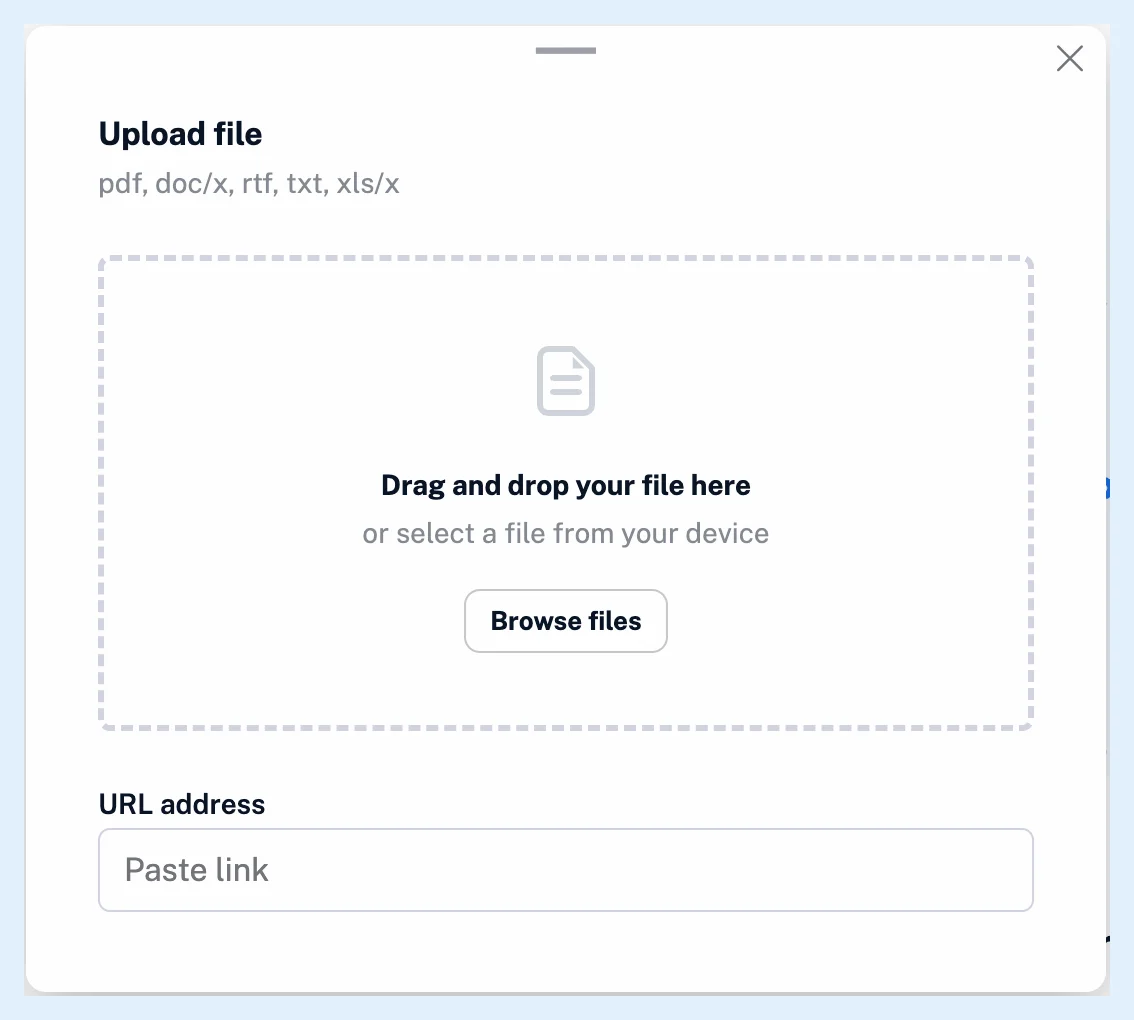
- Drag a file onto the box or click Browse files. To upload a file from the web, paste its address under URL address and click the Upload file button next to it.
- Once the file is picked, its name and size appear. Click Upload file.
- Wait while the dialog shows Uploading... and then Processing.... It closes by itself and the article appears in the Team's Uploads.
The upload goes to the Team because you started it from a Team page. Every member sees the new article, so make sure the document is fine for everyone before you upload it. No notification is sent and nothing is added to the Team's Activity.
What you can upload
One file at a time: a PDF of up to 10 MB and 50 pages, a DOC, DOCX, RTF, XLS, XLSX or MD file of up to 5 MB, a TXT file of up to 0.5 MB, or a link to a file of up to 10 MB. What file types can I upload? lists them, and How do I upload a file to Inoreader? covers uploads to your own account.
A file you've already uploaded, to your own Uploads or to the Team, is refused with "This file is already in your Uploads list" and a link to the article. A document already in your own Uploads can't be added to the Team again, so upload a file to the Team first when it is meant for everyone.
After the upload
What happens after I upload a file to my Team? explains the converted article and how to take it out of the Team, and Where can I find Team uploads? shows the list.
Plans
Team file uploads come with the Team and Team Intelligence plans as part of Teams.
Can't find an answer? Contact support