What are Team file uploads used for?
Team file uploads turn your Team's documents into articles that every member can open under Uploads in the Team sidebar. They give the Team one searchable library of its own files next to the feeds it follows, where members read and annotate them together.
What you can upload
A PDF of up to 10 MB and 50 pages, a DOC, DOCX, RTF, XLS, XLSX or MD file of up to 5 MB, or a TXT file of up to 0.5 MB. The limits are the same as for your own uploads, which What are file uploads? explains. Inoreader converts each file into an article with its text, headings, tables and pictures, and reads PDFs with text recognition, so scanned pages work too. It keeps the converted article, not the original file.
What the Team gets
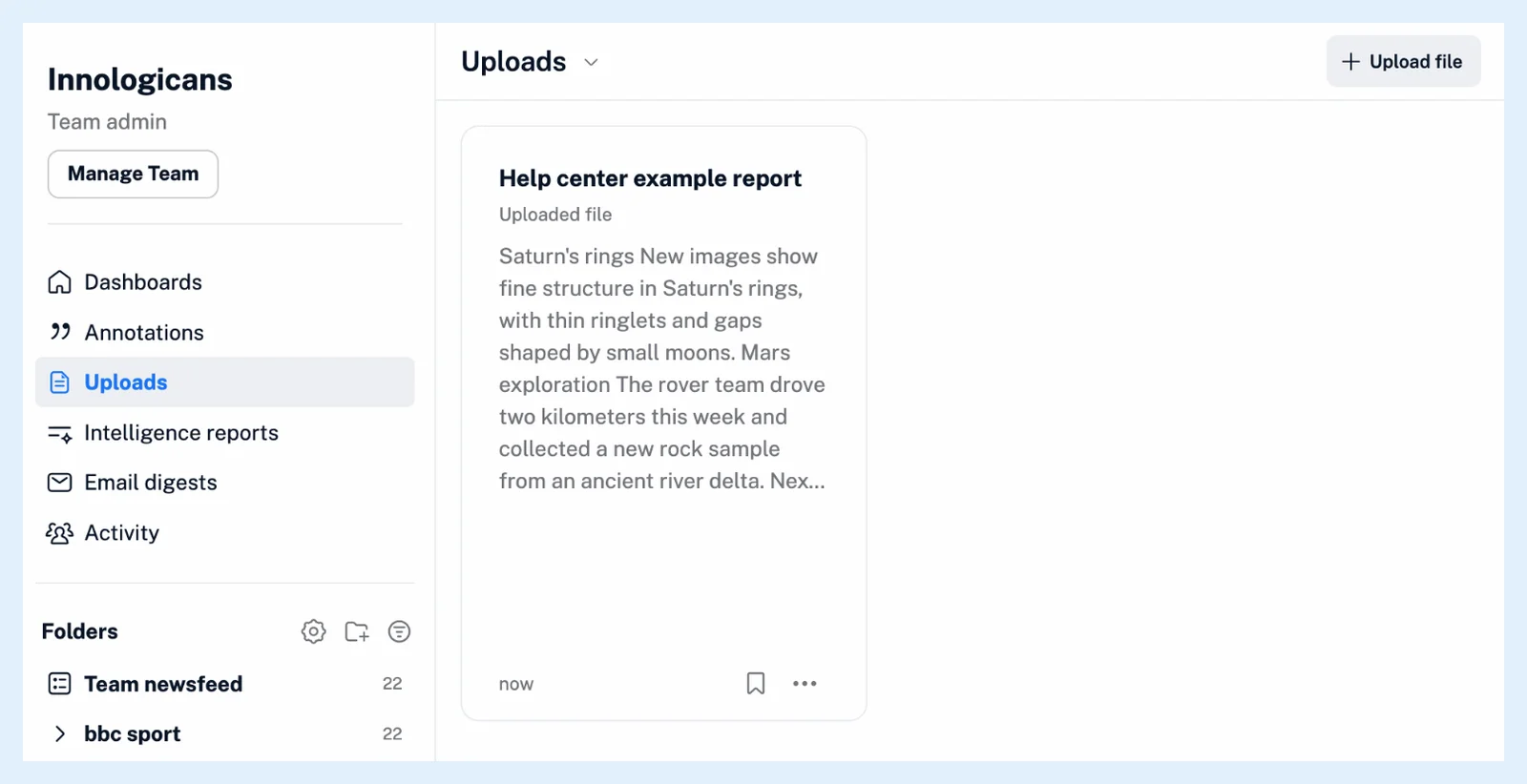
Every member of the Team sees the article in Team > Uploads, whoever uploaded it, and only members of the Team can open the list. Uploads are indexed for search, and the header search inside Team > Uploads searches the Team's documents. Members can highlight passages and add notes, kept to themselves or shared with the Team. A Team dashboard can show the latest uploads with the Uploads widget. Where can I find Team uploads? and What is my Team sidebar, and what can I find there? show the way around.
Upload a file
Click Team in the tab bar, open Uploads and click Upload file. A file uploaded while a Team page is open goes to the Team. How do I upload a file to my Team? walks through the steps.
Plans
Team file uploads come with the Team and Team Intelligence plans as part of Teams. The blog post Introducing new collaboration features for Inoreader Teams presents them.
Can't find an answer? Contact support