What are Team filters?
A Team filter is a content filter or a duplicate filter that a Team admin sets on a Team folder. It hides the matching articles, or the duplicates, in that folder's feeds for every member of the Team, not only for the admin who made it.
Team admins create and edit Team filters in Manage Team > Filters. Other members can see the list and who made each filter, but they can't change it.
What a Team filter does
A Team filter works on the feeds of its Team folder. When it removes an article, the article is marked read and hidden for the admin who created the filter and for every member of the Team. Team filters run even when a member's own filter has already removed the same article. Nobody is notified when a filter removes an article.
A content filter allows or removes articles based on conditions, as What are content filters? explains, and a duplicate filter removes duplicate articles, as What are duplicate filters? describes. A Team folder has one content filter: saving a second one opens the existing one instead.
Switching a Team filter off or deleting it brings the removed articles back as unread for every member.
Create a Team filter
- Click Team in the tab bar, then Manage Team.
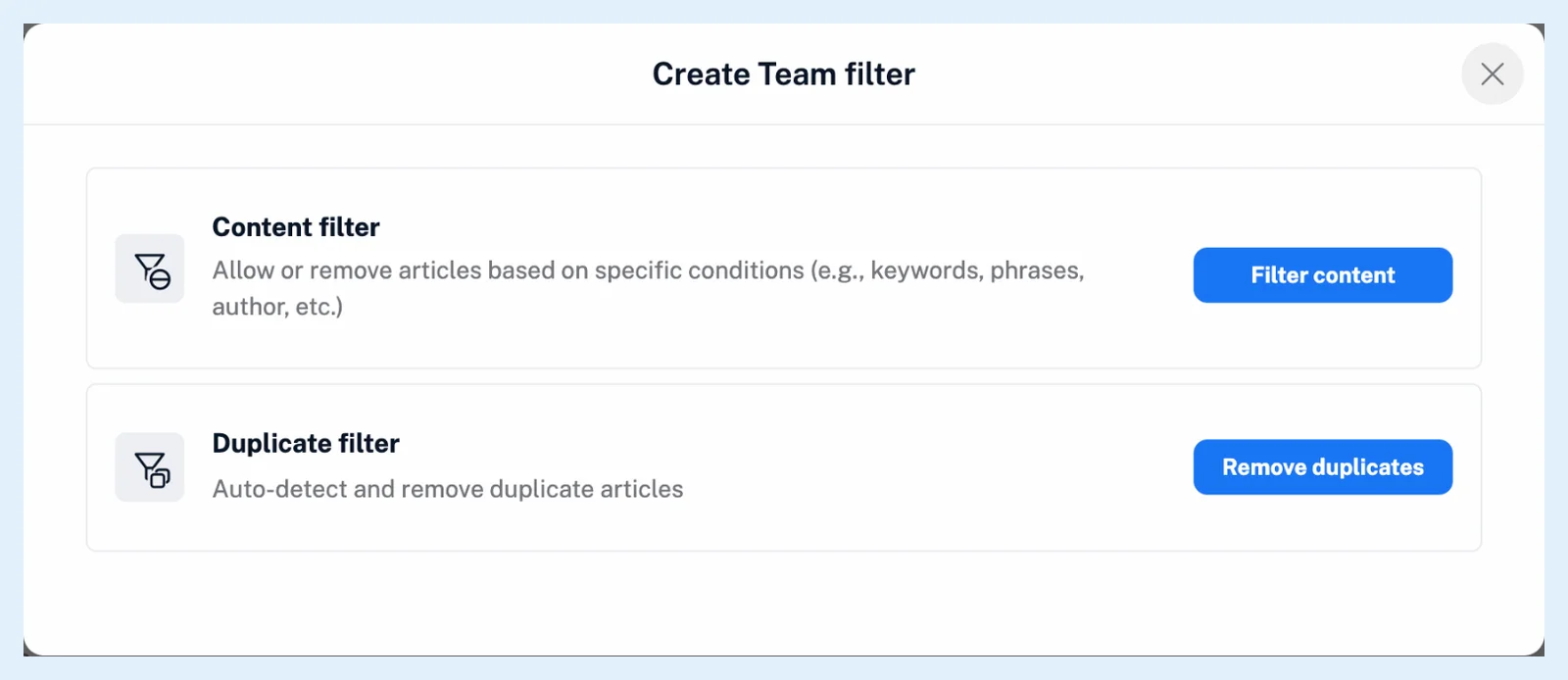
- Open Filters and click Create Team filter.
- Choose Filter content for a content filter or Remove duplicates for a duplicate filter.
- Under Select Team folder, pick a Team folder, set the filter up and save.
Team admins can also right-click a Team folder in the Team sidebar and choose Create Team filter. Members who aren't Team admins see the button greyed out.
Plans and limits
Team filters come with the Team and Team Intelligence plans, and only Team admins create and edit them. Team folders, the source of every Team filter, are explained in What are Team folders?. Team filters count against the Team's shared filter limit, 100 on the 3- and 5-seat plans and 150 on larger ones, content and duplicate filters together, as How do shared feature pools work? describes. The feature page Share one set of sources with your whole team has an overview, and the blog post Win the clone wars with duplicate filters shows duplicate filters at work.
Can't find an answer? Contact support