Can I control which tags appear in my sidebar?
Yes. Each Team tag can be pinned or unpinned in your own sidebar. In Manage Team > Content > Tags, click the pin icon on the tag's row. Only pinned tags show under Tags in the Team sidebar, and unpinning changes your sidebar alone, not your teammates'.
Pin or unpin a tag
- Click Team in the tab bar, then Manage Team.
- Open Content and the Tags tab.
- Click the pin icon on a tag's row to pin it to your sidebar or remove it from there.
The pin icon has the tooltip "Pin this tag in the sidebar" and is filled when the tag is pinned. The sidebar reloads as soon as you click it. Manage Team is open to every Team member through the Manage Team button at the top of the Team sidebar. Team admins also see a gear icon next to Tags in the sidebar that opens the same tab.
What the pin changes
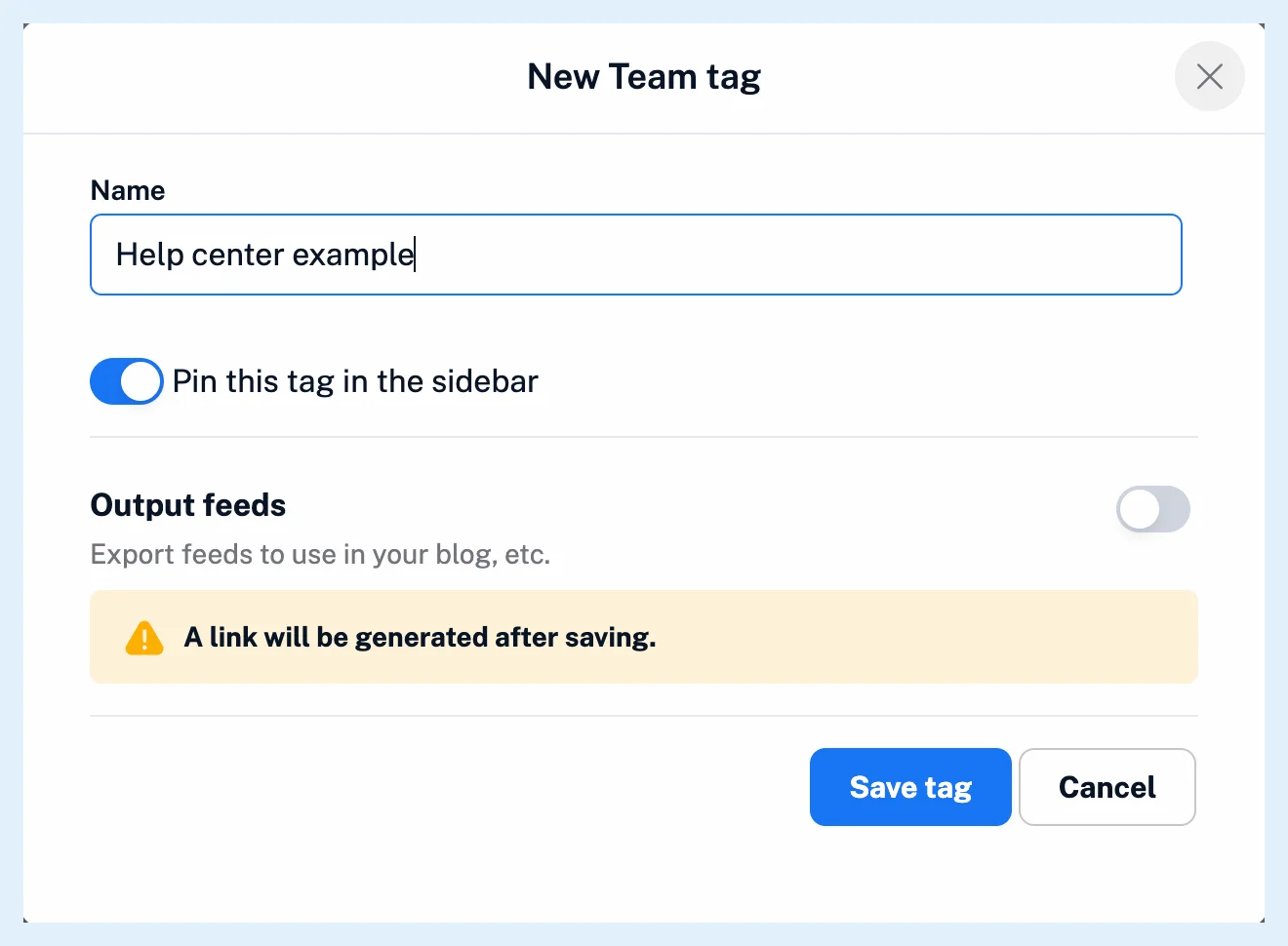
Each member has their own copy of a Team tag with its own pin setting, so pinning is personal. Unpinning hides the tag from your sidebar and nothing else: tagging works as before, the tag keeps its articles and your teammates' sidebars stay as they are. When a Team tag is created, the creator's Pin this tag in the sidebar choice is copied to every member, and a tag created from an article's menu is pinned for everyone. How do I add a Team tag? shows the dialog. Your personal tags have the same pin under Saved.
Plans
Team tags come with the Team and Team Intelligence plans, for every member. What are Team tags? explains how they work, What is my Team sidebar, and what can I find there? tours the sidebar, and the feature page Share one set of sources with your whole team covers the Team features.
Can't find an answer? Contact support