What are Team tags?
Team tags are tags that belong to the whole Team. Every member has each Team tag, and when anyone tags an article with one, the article appears under that tag for everyone.
They build a shared collection of articles by subject. When you want to share an article with a note and discuss it, use a Team channel instead, as What's the difference between Team channels and Team tags? explains.
How Team tags work
Each member has their own copy of every Team tag, kept in sync with the Team's tag, so a renamed tag changes for everyone. Tagging an article with a Team tag adds it to the tag for every member, and removing the tag from an article removes it for every member. A member who joins the Team later gets the articles that are already tagged. Tagging sends no notification to anyone.
Any member can create a Team tag, and creating one is recorded in the Team's activity. Only the tag's creator or a Team admin can rename or delete it. A member whose Team access has ended can't add Team tags.
Find your Team tags
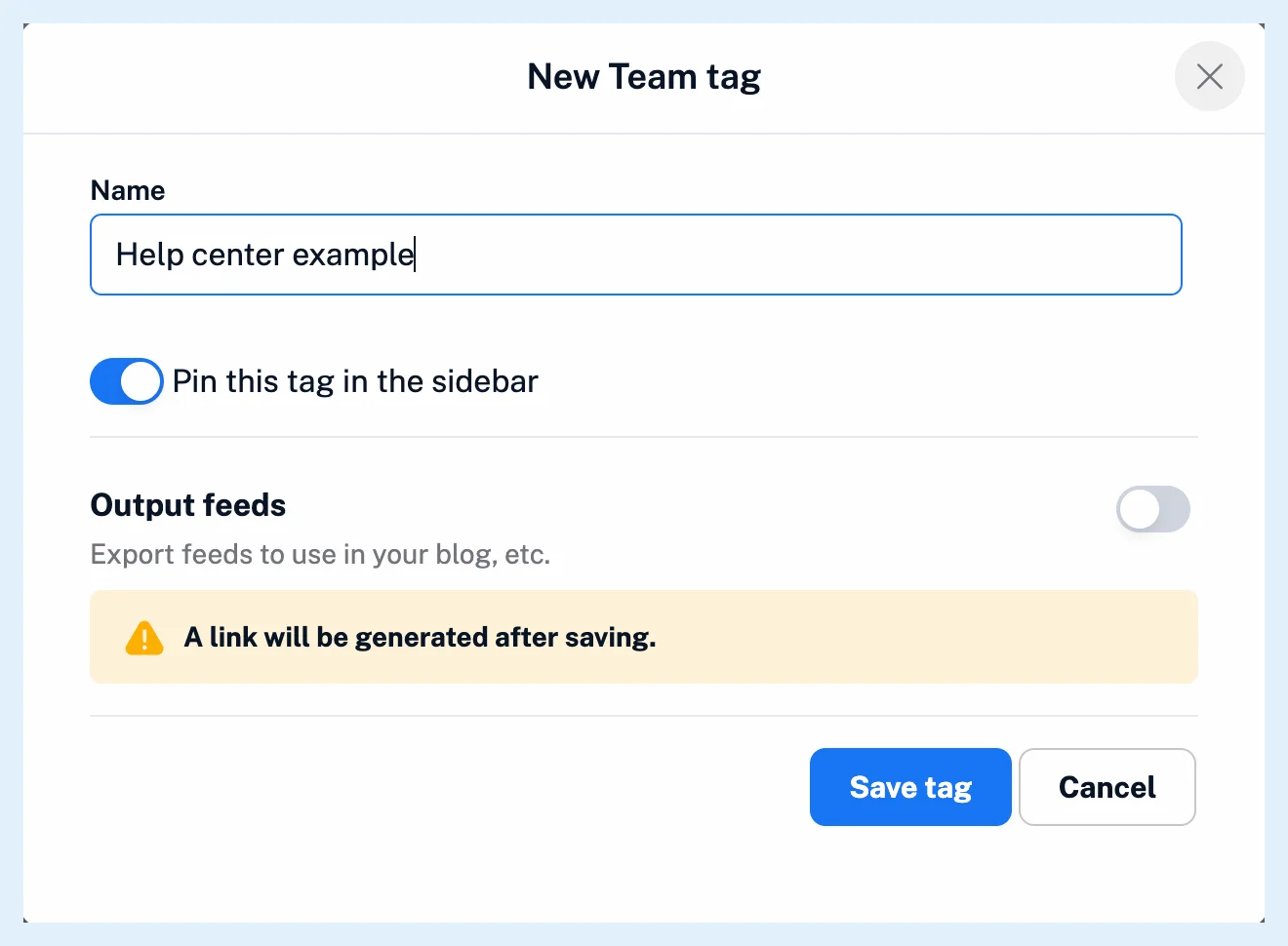
Team tags are listed under Tags in the Team sidebar, which you open with Team in the tab bar, and in Manage Team > Content > Tags, where each row shows the tag's Name, Articles today, Last article from and who created it. In tag menus a Team tag carries its own icon. Each member decides whether a Team tag is pinned in their own sidebar, as Can I control which tags appear in my sidebar? describes.
Tag automatically with a rule
A rule with the action Assign tag and a Team tag tags its matches for everyone. Rules that start from a tag run for each member who has one on that tag.
Plans
Team tags come with the Team and Team Intelligence plans, for every member. How do I add a Team tag? shows how to create one and tag an article, the video shows tags in general, and the feature page Share one set of sources with your whole team covers the Team features.
Can't find an answer? Contact support