Do I need to add all feeds manually?
No. Following a Team folder subscribes you to every feed in it in one step, and the folder stays in sync: feeds an admin adds later reach your account, and feeds an admin removes leave it unless you keep them in a folder of your own.
Feeds you already follow are linked into the Team folder rather than added twice, and following isn't stopped by your subscription limit.
Follow a Team folder
- Click Team in the tab bar, then Manage Team.
- Click Content, then Folders.
- Click Follow on the folder.
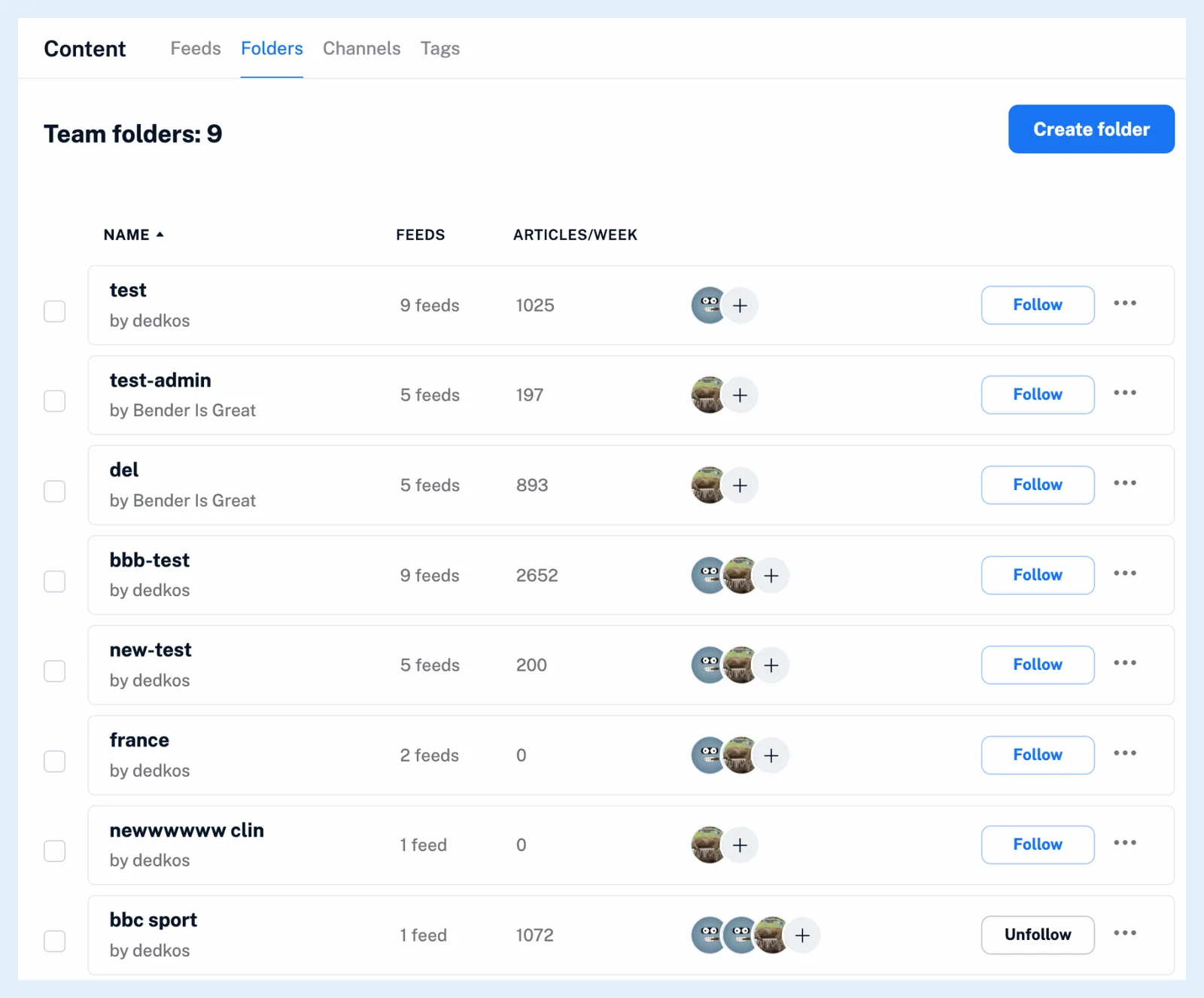
The feeds land in a folder with the Team folder's name under Folders in the Team sidebar. What are Team folders? explains what else happens when you follow one, and What types of content can Team folders include? lists the feed types a folder can hold.
Keep the folder in sync
When an admin adds a feed, in the folder dialog or from a feed's add menu, every follower is subscribed at once. When an admin removes a feed, it's removed from every follower, except that a feed you also keep in a personal folder stays there, outside the Team folder. Moving a Team folder feed into one of your own folders turns it into a personal subscription.
Unfollowing a Team folder removes the folder and unfollows the feeds in it that are in none of your personal folders.
Team tags arrive by themselves when you join a Team. Team folders don't, so follow the ones you need.
Let an admin follow a folder for you
An admin opens the folder's ⋯ menu in Manage Team > Content > Folders and clicks Folder members. The dialog searches members as the admin starts typing and has Select all. Ticking a member follows the folder for them, and unticking a member unfollows it. To assign several folders at once, an admin ticks the folders and chooses with selected > Assign Team member(s).
Admins can also attach Team filters to a Team folder, so duplicates and unwanted articles are removed for every follower.
Plans
Team folders are part of Teams on the Team and Team Intelligence plans.
Can't find an answer? Contact support