What happens after I upload a file?
Inoreader converts the file into an article and adds it to Saved > Uploads, titled with the document's first main heading or, when there is none, the file name. From there it works like any article: you can search it, tag it, annotate it and listen to it.
The converted article
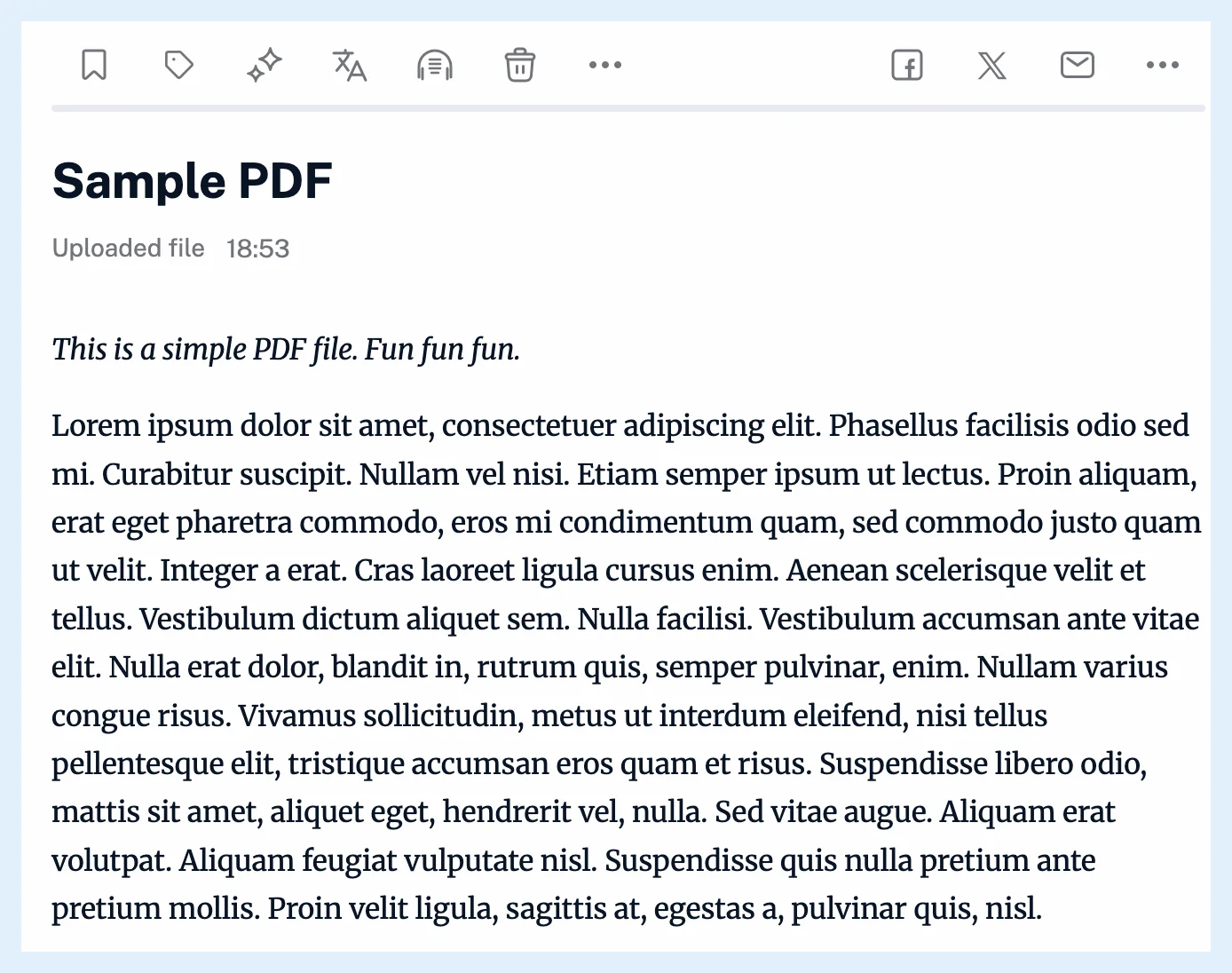
The dialog shows Processing... while Inoreader converts the file, then closes, and Uploads reloads with the new article. The article holds the document's text with its headings, lists, tables and pictures. PDFs are read with text recognition (OCR), math formulas become pictures, and TXT files are shown as plain text. In the list, the article's source reads "Uploaded file" and its date is the upload time. Uploads don't appear in Web pages. Inoreader keeps the article, not the original file.
Work with the article
The article is indexed, so you can search inside Uploads or pick Uploads as the scope on the Search page. See how to search for articles in Inoreader. Tag it like any article (how to tag an article). A file uploaded from a tag's Add menu gets that tag on its own. Annotate it (what annotations are) or listen to it with text-to-speech. A rule with the trigger New upload runs on every new upload. On Team plans, an upload made on the team's Uploads page is shared with the team, and email digests can use Uploads as a source.
Delete an upload
- Open it from Saved > Uploads.
- Click Delete article, the trash icon in its button row.
- Confirm in the "Delete article?" dialog.
Deleting removes the article's tags and annotations and takes it out of search. The same file can then be uploaded again. Until then, uploading the same file again is refused with "This file is already in your Uploads list" and a link to the article.
Failed conversions
When Inoreader can't convert a file, nothing is added and the dialog says why: "No text was found in this file.", "This file could not be converted." or "This file has more than 50 pages".
Plans and limits
File uploads are a Pro feature, as are annotations and rules. Text-to-speech gives Free accounts 5 articles a day and Pro no daily limit. Where to find uploaded files shows where they live.
Can't find an answer? Contact support