How do I upload a file to Inoreader?
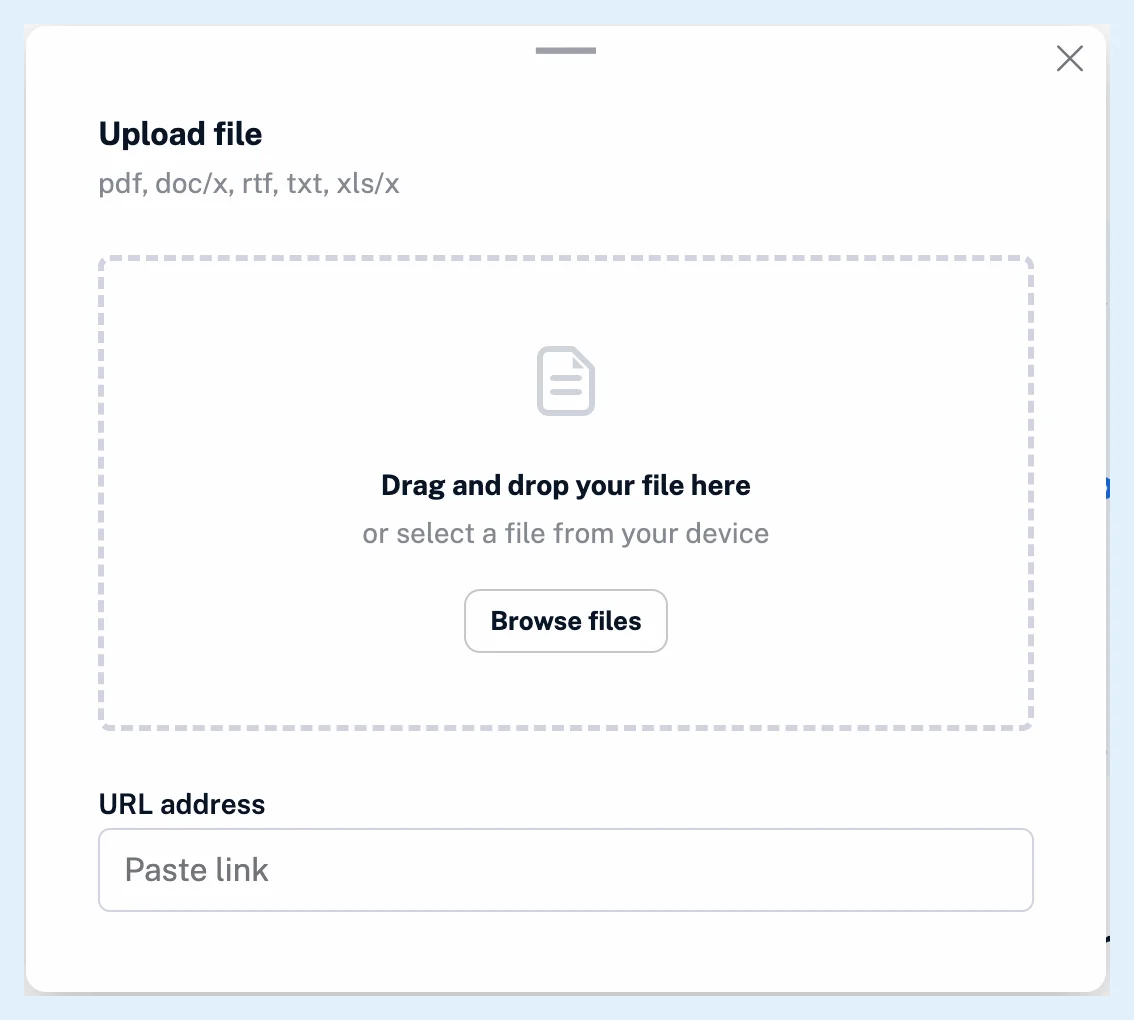
Go to Saved > Uploads, click Upload file in the header, drop a file on the box or click Browse files, and click Upload file once it's picked. To upload from the web, paste the file's address in URL address and click the Upload file button next to it.
Upload a file from your device
- Click Saved in the tab bar, then Uploads in the sidebar.
- Click Upload file in the header.
- Drag a file onto the box, or click Browse files and pick one.
- Click Upload file.
- Wait while the dialog shows Uploading... with a progress bar and then Processing... while Inoreader converts the file. The dialog closes and the article appears in Uploads.
Inoreader takes one file at a time. The X during the upload, Cancel upload, stops it.
Upload a file from a link
In step 3, paste the file's address in URL address and click the Upload file button next to it. The address must be a valid URL, the file type comes from the address or from the name the server gives the file, and the file can be at most 10 MB.
Upload into a tag
Open a tag, click Add in its header and choose Upload file. The new article gets that tag.
Refused files
The dialog accepts PDF, DOC, DOCX, RTF, TXT, MD, XLS and XLSX files. Another type is refused at once with "File type not allowed", and a file over its limit with "This file exceeds the 10MB size limit", where the number is the type's own limit. After the upload, the file's content must match its type, a PDF may have at most 50 pages, and a file you already uploaded is refused with "This file is already in your Uploads list" and a link to the existing article. A file Inoreader can't convert ends with "No text was found in this file." or "This file could not be converted." See what file types you can upload and where to find uploaded files.
Plans and limits
File uploads are a Pro feature. A Free account sees "This feature is only available to Pro users." with Upgrade now in the dialog. On Team plans, uploading on the team's Uploads page shares the file with the team. See how to upload a file to your Team. What file uploads are has the overview.
Can't find an answer? Contact support