How do I jump to a feed, folder or section with quick access?
Press the period key (.) anywhere in the web app to open quick access, a search box that lists your feeds, folders, tags, dashboards and the app's sections. Type part of a name, then press Enter or click the row to go there.
The panel opens near the top of the window and shows the full list before you type anything. Each row has the item's name, then a dash and the section it belongs to, so Uploads is marked Saved and Rules is marked Automation. Folders and feeds also show their unread count.
Open an item
- Press . anywhere outside a text field.
- Type part of the name, for example "uploads" or "rules". To narrow the list by section, type the section first: "saved up" finds the Uploads row marked Saved.
- Press Up or Down to pick a row, or point at it with the mouse.
- Press Enter or click the row. Esc closes quick access without going anywhere.
The words you type don't have to sit next to each other, as long as they appear in that order. Opening a feed or folder also highlights it in the sidebar.
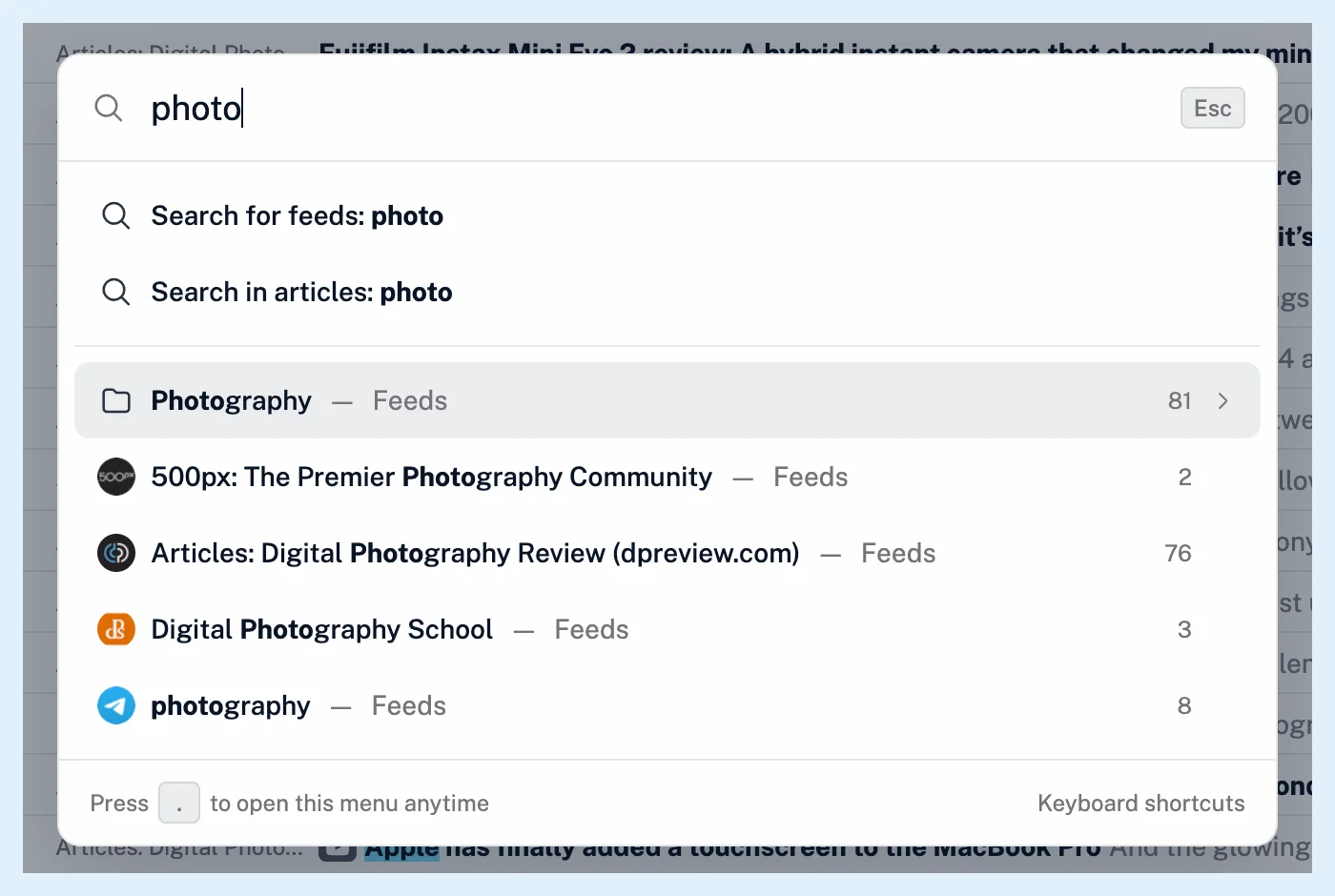
Search for something new
Quick access lists only the feeds you follow. As you type, two more rows appear above the results: Search for feeds: looks for new feeds in Add feed, and Search in articles: searches your account. When nothing matches, Enter starts the feed search. Paste a feed or site address and the row becomes Add feeds from, which follows the feed at once. See how to add a feed and how to search for articles.
Open a shorter list
Press g and then u within two seconds to open quick access with only your feeds, or g and then t for only your folders, tags and monitoring feeds. The Keyboard shortcuts link at the bottom of the panel opens the full list, see which keyboard shortcuts Inoreader has.
Turn it on or off
Quick access is a keyboard shortcut, so it stops working when Keyboard shortcuts is switched off under Preferences > Settings > Power user settings. Shortcuts are on by default. Quick access is available on every plan, Free included.
Can't find an answer? Contact support